
Company Introduction
More






Laptop Still Slow? Stop Blaming the CPU and Fix Your Storage (2026)
Share:
If your laptop feels like it's grinding to a halt—boot times are an eternity, browsers hang for no reason, and file transfers are a joke—don’t rush into buying a new PC just yet. Nine times out of ten, it’s not your CPU dying; it’s your storage hitting a wall. Most people dump their hardware when they should just be ditching the old drive.
It’s rarely the CPU’s fault. More often than not, you're just looking at a storage bottleneck. As apps and OS updates get heavier, those aging hard drives—and even early-generation SSDs—simply can't keep up with the data demand anymore.
At Taimi, we’ve spent years validating storage solutions for both industrial and consumer platforms. Based on our real-world engineering data, here is how you can determine if an SSD upgrade is the right fix for your laptop in 2026.
The "Disk 100%" Diagnostic: Check Before You Spend
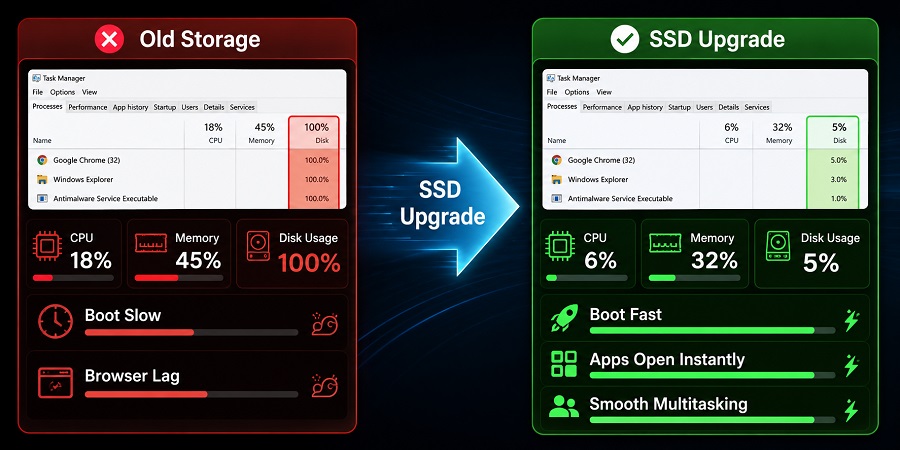
Before buying anything, let the system talk to you. Open Task Manager (Ctrl+Shift+Esc) and use your laptop normally for 10 minutes—launch your browser, open folders, and switch between apps.
Pay close attention to the "Disk" column. If it’s pegged at 100% while your CPU and Memory are idling, you’ve found the problem. Your processor is essentially starving for data, waiting on a drive that can't keep up. In our experience, replacing that drive with a modern SSD is the single most effective way to make a tired machine feel brand new again.
Choosing the Right SSD: A Quick Decision Guide
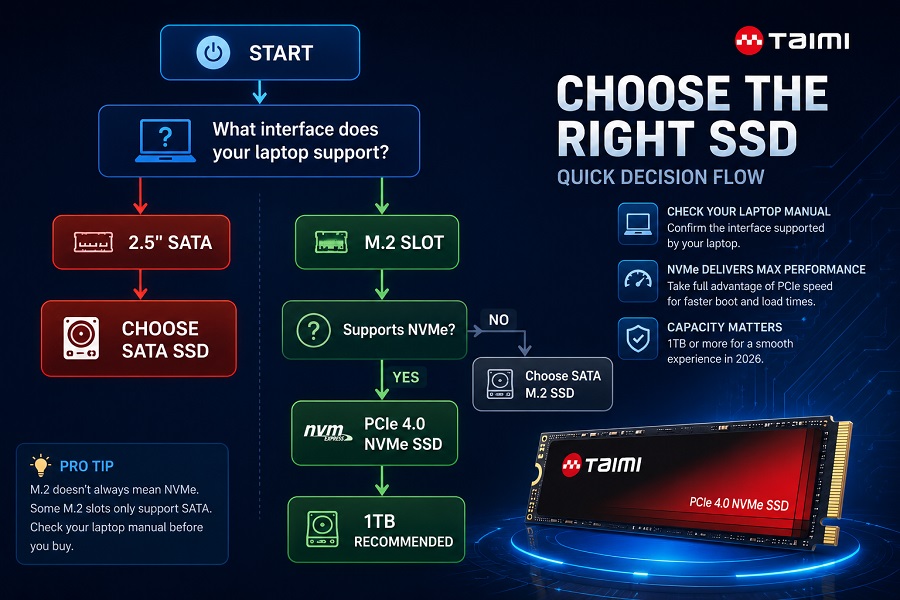
You don't need a degree in hardware engineering to pick a decent drive. Use this breakdown to ensure you're getting the right hardware for your specific laptop:
| Consideration | What You Need to Know |
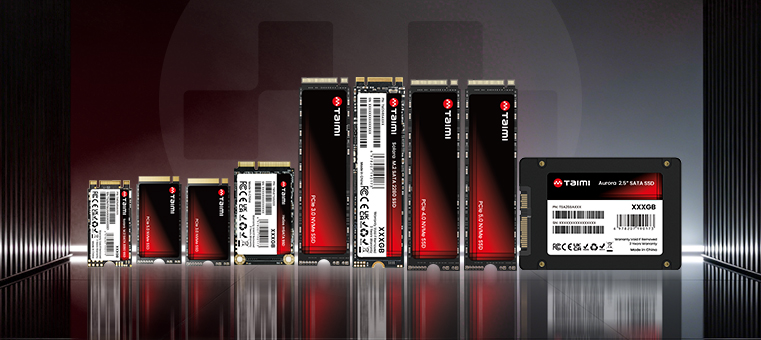
| Interface | Check your laptop manual. Older models use 2.5" SATA; modern ones use M.2 NVMe. Don't guess, or you'll be dealing with the hassle of returns. |
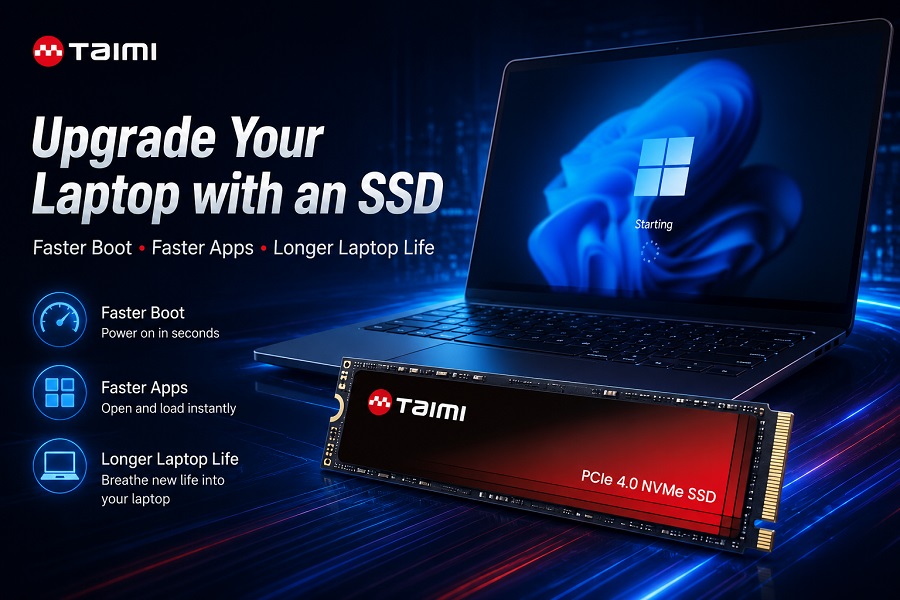
| PCIe Version | Don't worry if your laptop is limited to PCIe 3.0. A 4.0 drive is backward compatible and will work perfectly—it just future-proofs your upgrade for later. |
| Capacity | Stop buying 256GB or 512GB just to save a few bucks. In 2026, 1TB is the new baseline for a smooth, frustration-free experience. |
Pro Tip: Be careful—M.2 doesn't always mean NVMe. Some older M.2 slots only talk to SATA drives. Check your manual before you buy.
Taimi’s Engineering Standard: Why Performance Consistency Matters
Most people shop by benchmarks, but we ignore the "peak" numbers in our lab. Why? Because a drive that’s fast for 30 seconds but drops off when it’s 80% full is a bad drive.
At Taimi, we focus on:
-
Firmware Reliability: It should feel just as snappy after a year of heavy Windows updates as it did on day one.
-
Thermal Management: If you’re doing real work—video editing or software compilation—that SSD is going to get hot. Keep the thermal pad or heat spreader from your old drive, or get a new one. It prevents the controller from throttling performance during sustained loads.
-
Platform Stability: A reliable SSD shouldn't give you "blue screen" headaches during sleep/wake cycles. We validate our drives across diverse chipsets so you don't have to worry about compatibility surprises.
Practical Tips for a Successful Upgrade
-
Don't skip the clean install: If you can, just wipe the drive and reinstall Windows. Migration tools are convenient, but they usually carry over years of registry rot and background junk.
-
Reuse your old drive: If the old drive isn't dead, grab a $10 USB enclosure. It’s an easy way to get a reliable, portable backup drive.
-
Test by doing: Forget the benchmark software. After the upgrade, just use your PC. If your daily apps open instantly and the stuttering stops, you’ve won.
Frequently Asked Questions (FAQ)
Q: Is an SSD upgrade worth it for a 6-year-old laptop?
A: Definitely. If your CPU and RAM are still doing their job, an SSD upgrade is the most cost-effective way to get more life out of your gear. It’s the difference between a machine that gathers dust and one that works for you.
Q: Will a PCIe 4.0 SSD be too fast for my PCIe 3.0 laptop?
A: Not at all. They are backward compatible. You'll run at PCIe 3.0 speeds now, but you’ll have a faster drive ready to go when you eventually upgrade the rest of your laptop.
Q: How much storage should I get?
A: 512GB is the bare minimum, but we recommend 1TB in 2026. If you're a gamer or a creator, go for 2TB.
Q: Why SATA vs. NVMe?
A: SATA is the old standard; it's reliable but capped in speed. NVMe is the modern way to go—it’s significantly faster because it talks directly to your PCIe bus.
Q: Why does my disk usage stay at 100%?
A: It means your drive is either failing or it’s simply too slow for the data demands of modern software. Either way, it’s a red flag that it's time for an upgrade.
Are you a systems integrator or a PC hardware enthusiast? [Click here to view our latest industrial-grade storage solutions] or contact our technical team if you need help matching a drive to your specific hardware.