
Company Introduction
More












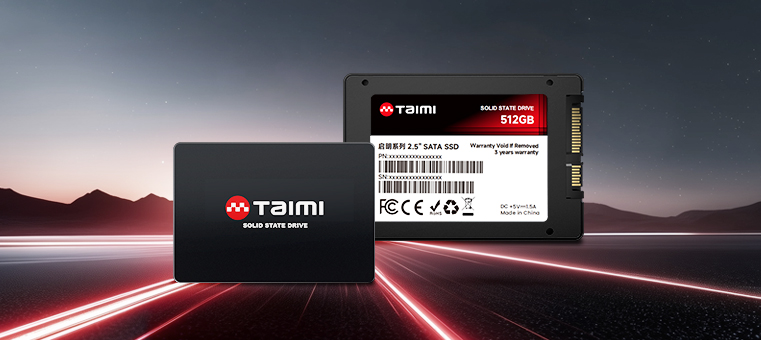

New SSD Not Showing Up? Here's How to Fix It in 3 Simple Steps (2026 Guide)
Share:
Overview
Just installed a new SSD. Nothing in Windows… is it a bad drive?
That’s usually how this starts. You build the system, power it on, expect a new drive to appear… and nothing happens. Sometimes it doesn’t show in Windows, sometimes not even in BIOS. The first reaction is usually the same—hardware failure.
But in practice, that’s rarely the case. Most of the time, the Taimi NVMe SSDs is perfectly fine. What’s actually happening is the system hasn’t finished setting it up yet, or something in BIOS or the motherboard configuration is getting in the way. We’ve seen this enough times in support cases that the pattern is very consistent.
These are the three checks we usually start with. (If you’re unsure about your hardware specs, check our PCIe vs. SATA storage guide first to ensure you have the right fit.)
Check if Windows is already seeing the SSD
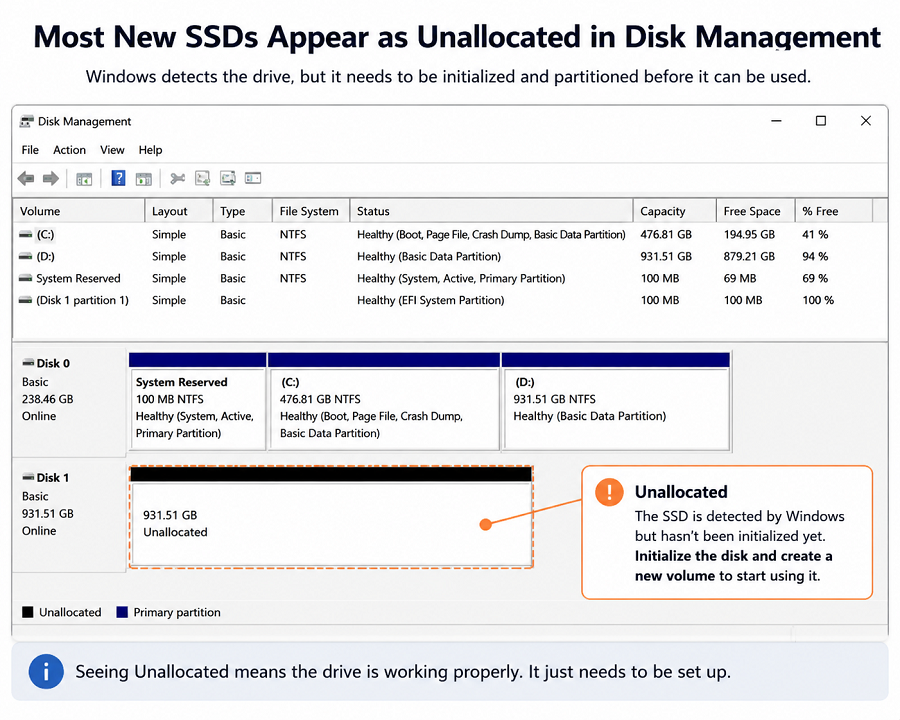
Save yourself the trouble of opening the case or fiddling with BIOS settings for a moment. Just check Windows Disk Management first. If it shows up there, you’re halfway home.
A brand-new SSD won’t show up in File Explorer by default. That part is normal. It usually hasn’t been initialized yet.
The quickest way to check is Disk Management:
- Right-click Start → open Disk Management.
If you see the drive listed as Unallocated, Windows already sees it. Nothing is wrong with the hardware at this point. The system just hasn’t prepared the storage space yet.
To get it working:
- Initialize as GPT
- Create a new simple volume
- Assign a drive letter
- Format the partition
After that, it should appear in File Explorer.
Small note from support experience
This is the step people usually overlook. A lot of users expect Windows to automatically “activate” a new SSD, but it doesn’t work that way. The drive has to be initialized first.
Check BIOS and physical installation
If Windows remains silent, shift your focus to the BIOS. You’re looking to confirm if the motherboard itself has established a handshake with the SSD.
Start with the physical side. First off, look at the physical seating. It sounds basic, but I’ve seen plenty of 'dead' drives that were just tilted or not pushed in all the way. Give it a proper reseat—ensure it’s perfectly flush in the slot—and most of the time, the system will pick it up immediately.
Also check the mounting screw. If it’s tightened too hard, it can slightly bend the PCB. Not always noticeable, but enough to cause contact issues.
If everything looks fine physically, go into BIOS. If the drive is missing there too, the issue is usually not Windows—it’s either board configuration or PCIe communication.
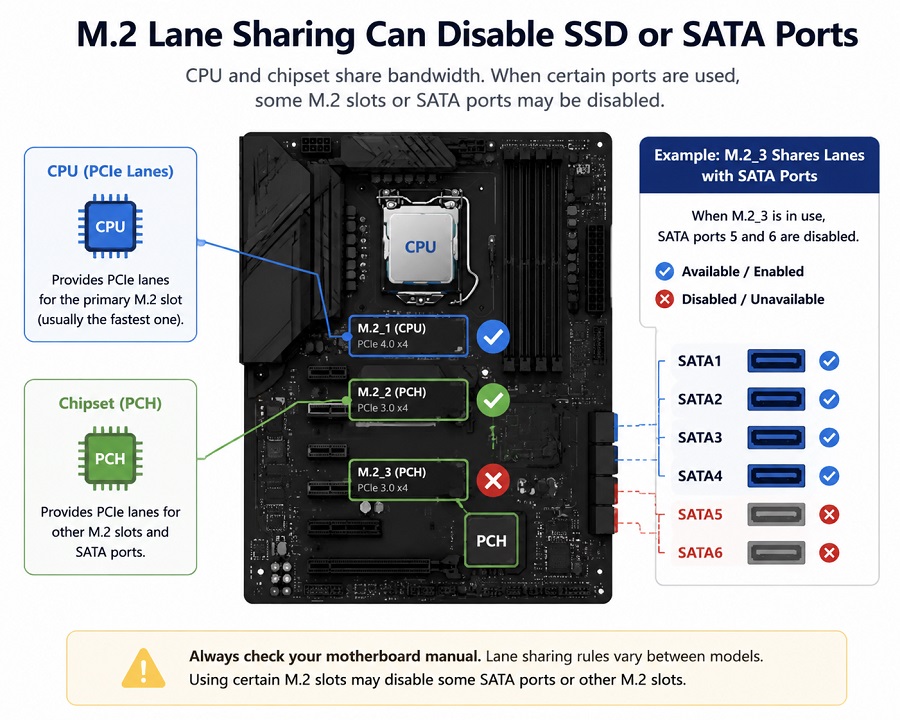
One common situation we still see is lane sharing. Some motherboards disable certain M.2 slots when specific SATA ports are used. It’s not obvious unless you check the manual.
If you’re stuck, try this:
- Move the SSD to another M.2 slot.
- Prefer the CPU-connected slot if available.
- Temporarily unplug SATA devices and test again.
Another thing worth checking is PCIe speed negotiation. Some boards don’t handle “Auto” well with newer NVMe drives. Setting it manually to Gen3 or Gen4 can sometimes stabilize detection.
Rule out compatibility and firmware limits
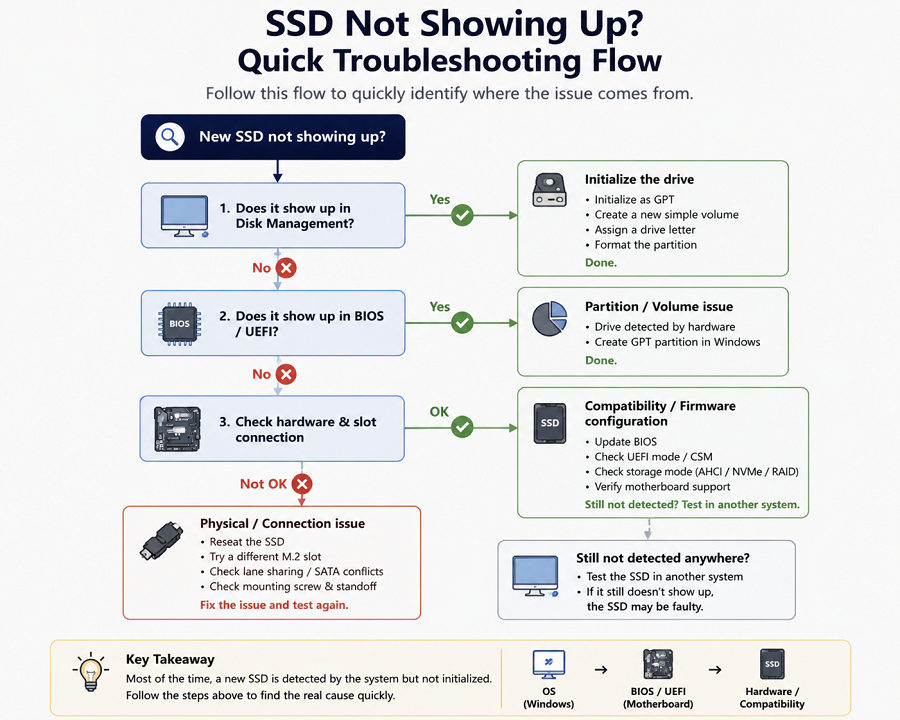
If the SSD is still not showing in both BIOS and Windows, it’s usually not an installation issue anymore. At this point, it becomes a compatibility question.
On older boards, NVMe support can depend heavily on BIOS version. The slot may physically exist, but firmware support may be incomplete.
We’ve also seen cases where storage settings prevent detection entirely—especially RAID mode or legacy/CSM configurations on systems expecting UEFI behavior.
If everything else looks correct, check:
- BIOS version (update if it’s old)
- CSM / Legacy mode (UEFI is preferred)
- Storage mode settings (AHCI / NVMe depending on platform)
- Whether the motherboard actually supports that SSD generation
If all of that checks out and it still doesn’t appear, the fastest way forward is testing the SSD in another compatible system. That separates drive issues from platform limitations immediately.
If the SSD is detected correctly but Windows still fails to start after migration, the issue may be related to boot configuration rather than hardware detection. You can also check our guide on how to fix a cloned SSD that won’t boot for Windows startup troubleshooting.
Quick troubleshooting checklist
Before assuming the SSD is faulty, go through this:
- Does BIOS detect the SSD?
- Does Disk Management show unallocated space?
- Is the SSD fully inserted?
- Is an M.2 slot being disabled by SATA ports?
- Is BIOS up to date?
- Is the system running UEFI mode?
Quick diagnosis table
| Situation | What it usually means | What to check |
|---|---|---|
| SSD not showing in File Explorer | Not initialized yet | Disk Management |
| SSD not in Disk Management | BIOS / hardware detection issue | BIOS + slot check |
| SSD shows in BIOS but not Windows | Missing partition | Create GPT volume |
| SSD missing during Windows install | Driver or storage mode issue | Load driver / check BIOS |
| SSD works intermittently | Connection or slot instability | Reseat / change slot |
FAQ
Why does my new SSD not show up in Windows?
It’s usually already detected. Just not initialized yet—GPT partition in Disk Management, and it shows up.
Why is my SSD visible in BIOS but not in Windows?
That usually means the hardware is fine. It just hasn’t been partitioned or formatted yet.
Why is my SSD not detected during Windows installation?
This is often related to storage drivers, RAID mode, or BIOS configuration.
Can a new SSD be defective?
It can happen, but it’s not common. Most cases are configuration-related, not hardware failure.
Should I update BIOS before installing a new NVMe SSD?
If the board is older or the SSD is newer generation, a BIOS update often helps with compatibility.
Final thoughts:
Still nothing? Don't let it bug you. These things can get tricky when you're mixing different generations of hardware.
If you're stuck, just send us a support note with your motherboard and SSD details. We've seen just about every configuration imaginable—we'll help you get to the bottom of it. You can also read more about Taimi to see our mission in high-performance storage.
Related Products
Recommended Articles
SVIAZ 2026 Recap: Moscow, Data, and Our Manufacturing Reality
2026-04-02
More
Taimi @ Global Sources Hong Kong 2026: The Technical Recap
2026-06-25
More
Laptop Still Slow? Stop Blaming the CPU and Fix Your Storage (2026)
2026-04-23
More
7000MB/s Peak Read vs. Sustained Write Lines in 4K Video Workflows
2026-04-24
More
PCIe 4.0 vs. SATA SSD: Choosing the Right Storage for OEM Projects (No Fluff)
2026-06-26
More
Taimi’s Integrated Manufacturing Strategy: Insights from Eletrolar Show 2026
2026-06-24
More
New SSD Not Showing Up? Here's How to Fix It in 3 Simple Steps (2026 Guide)
2026-07-03
More