
Company Introduction
More







Cloned SSD Won’t Boot After Migration? 7 Fixes to Start Windows Again
Share:
Replacing an old hard drive with a new SSD is one of the most common upgrades for improving computer performance. Many users choose disk cloning because it allows them to keep Windows, applications, and personal settings without reinstalling the operating system.
However, after cloning is completed, some users discover that the new SSD will not boot.
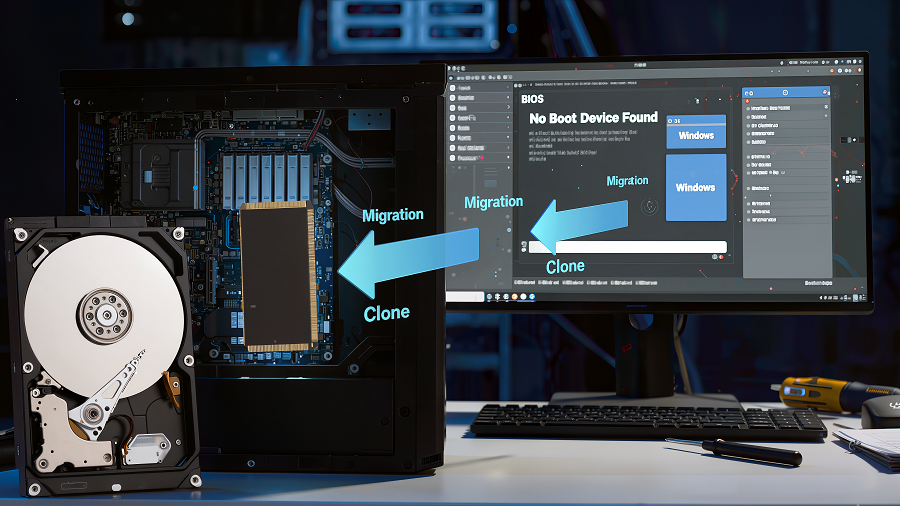
The computer may detect the SSD in BIOS, but Windows fails to load. Some systems display “No Boot Device Found,” repeatedly enter BIOS settings, show a black screen with a blinking cursor, or get stuck in Windows Automatic Repair.
A successful cloning process only means that the data transfer has completed. The new SSD still requires the correct boot configuration, partition structure, and Windows startup files to load the operating system properly.
During SSD migration testing and troubleshooting, we have found that most cloned SSD boot failures are related to:
-
BIOS/UEFI boot settings
-
Windows boot files
-
GPT and MBR partition compatibility
-
EFI System Partition configuration
-
Incorrect cloning settings
This guide explains 7 practical fixes to help you troubleshoot a cloned SSD that will not boot.
Quick Answer: Why Does a Cloned SSD Fail to Boot?
| Cause | Result | Fix |
|---|---|---|
| Wrong boot order | Computer starts from another device | Set the cloned SSD as the first boot option |
| Old drive still connected | Boot conflict between two Windows systems | Disconnect the original drive temporarily |
| GPT/MBR mismatch | Windows cannot start | Match BIOS mode and partition style |
| Missing EFI partition | Windows Boot Manager cannot load | Repair boot files |
| Damaged BCD | Windows cannot find the operating system | Rebuild Boot Configuration Data |
| SSD installation issue | SSD is not detected correctly | Check SSD connection |
| Source drive errors | Existing problems are copied during cloning | Repair the original drive before cloning again |
Before Fixing the Clone: Check These Basics
1. Confirm the SSD Appears in BIOS/UEFI
The first step is to confirm whether the motherboard can recognize the cloned SSD.
Restart the computer and enter BIOS/UEFI settings. Common keys include:
-
Del
-
F2
-
F10
-
Esc
If the SSD is not detected:
For NVMe M.2 SSD:
Check:
-
The SSD is fully inserted into the M.2 slot
-
The motherboard supports NVMe storage
-
The SSD mounting position is correct
If the SSD is not detected in BIOS, the issue may be related to installation, compatibility, or hardware connection. For more troubleshooting steps, check our guide on why a new SSD is not showing up.
For SATA SSD:
Check:
-
SATA data cable connection
-
Power cable connection
-
SATA port condition
If the SSD appears in BIOS but Windows cannot start, the issue is usually related to the boot environment rather than the SSD hardware itself.
2. Disconnect the Original Drive
After cloning, the old drive and new SSD contain similar Windows system information.
Keeping both drives connected during the first startup may create boot conflicts.
Possible issues include:
-
Computer selecting the wrong boot device
-
Windows starting from the old drive
-
Windows Boot Manager confusion
For the first startup:
-
Shut down the computer.
-
Disconnect the original drive.
-
Boot only from the cloned SSD.
After Windows starts successfully, reconnect the old drive.
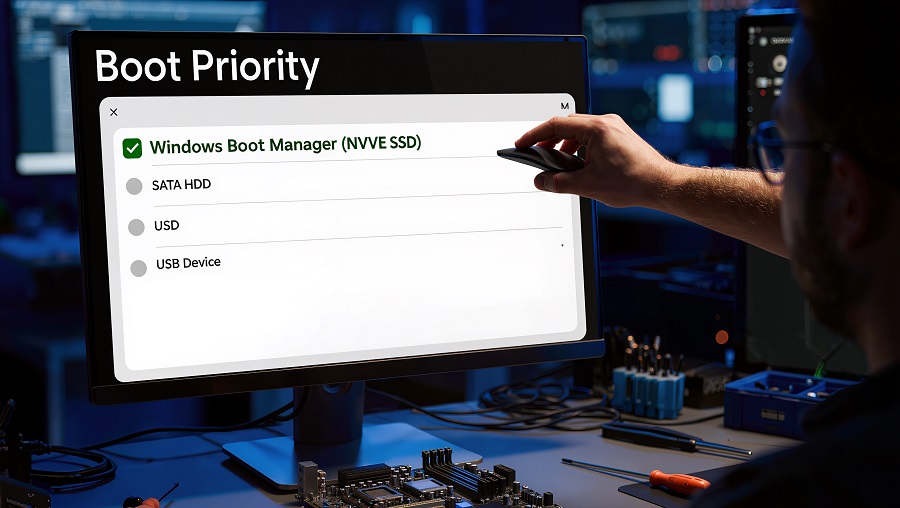
Check BIOS Boot Priority
After replacing an old drive with a cloned SSD, the computer may still try to start from the previous storage device.
The SSD can be detected correctly, but the system may continue using the wrong boot option.
To change the boot priority:
-
Enter BIOS/UEFI settings.
-
Open the Boot menu.
-
Find Boot Priority or Boot Option.
-
Select Windows Boot Manager linked to the cloned SSD.
-
Move it to the first position.
-
Save changes and restart.
In real SSD migration scenarios, checking boot priority is often the fastest first step because the system may simply be trying to start from the wrong drive.
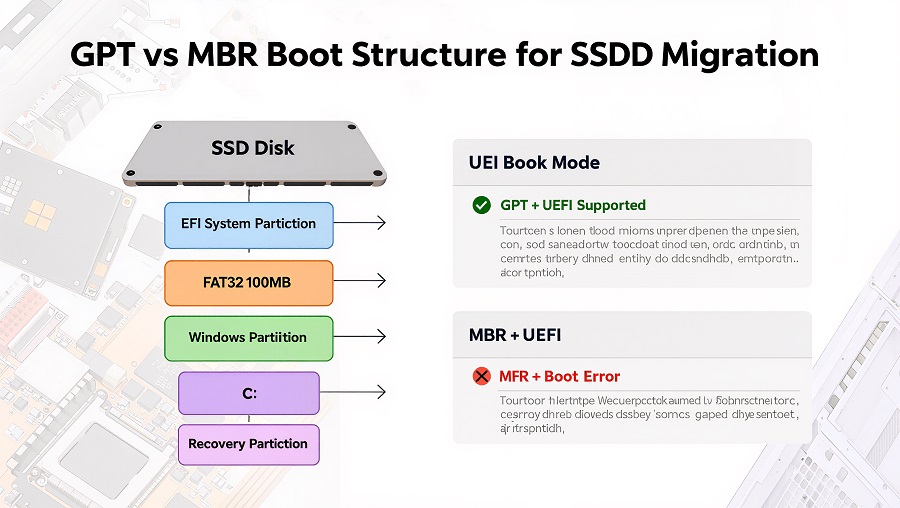
Check GPT and MBR Compatibility
A cloned SSD may contain the correct Windows files but still fail to boot if the partition style does not match the system firmware.
Most modern computers use:
UEFI + GPT
Older systems may use:
Legacy BIOS + MBR
To check the partition style:
-
Open Windows Disk Management.
-
Right-click the disk.
-
Select Properties.
-
Open the Volumes tab.
-
Check Partition Style.
For Windows 10 and Windows 11 systems, GPT with UEFI mode is recommended.
If the original drive uses MBR, supported Windows versions can use the built-in MBR2GPT tool to convert the disk.
Repair the EFI System Partition
Windows requires more than the main system partition to boot correctly.
Modern systems use a hidden partition called the EFI System Partition (ESP), which stores important startup information.
The EFI partition contains:
-
Windows Boot Manager
-
Startup configuration files
-
UEFI boot information
During cloning, this partition may not be copied correctly or the boot files may not be registered properly.
Common symptoms:
-
SSD detected in BIOS
-
“Operating System Not Found”
-
Automatic Repair loop
-
Missing Windows Boot Manager
A typical EFI partition:
-
Uses FAT32 format
-
Is usually around 100MB–300MB
If boot files are missing, Windows Recovery Environment can rebuild them.
Example command:
bcdboot C:\Windows /f UEFI
Always confirm the correct Windows partition before running repair commands. The Windows drive letter may be different inside the recovery environment.
If the EFI partition exists but Windows still cannot start, the next step is checking the Boot Configuration Data (BCD).
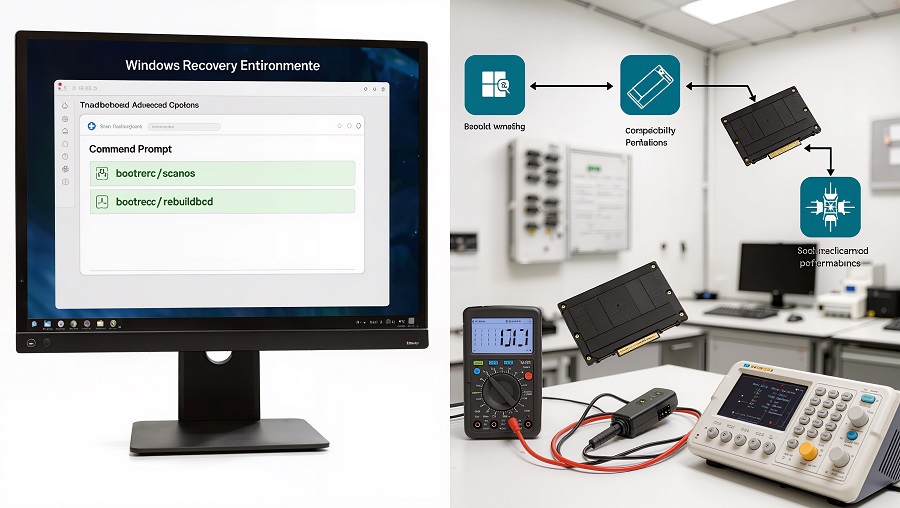
Rebuild Windows Boot Manager (BCD)
The Boot Configuration Data (BCD) controls how Windows starts.
It stores information about:
-
The Windows installation location
-
The partition containing boot files
-
Startup configuration
If the BCD is damaged during migration, Windows may fail to start even when the cloned SSD contains the correct data.
Common symptoms:
-
Windows logo appears but startup fails
-
Automatic Repair keeps restarting
-
Boot configuration errors
Use Windows installation media:
Repair your computer → Troubleshoot → Command Prompt
Run:
bootrec /fixmbr

bootrec /scanos

bootrec /rebuildbcd
Restart the computer after the repair is complete.
Check SSD Installation and Connection
If BIOS cannot detect the SSD, Windows repair tools cannot solve the problem.
For NVMe M.2 SSD, check:
-
SSD installation position
-
M.2 slot compatibility
-
Motherboard NVMe support
For SATA SSD, check:
-
SATA cable
-
Power cable
-
SATA port
Before replacing or upgrading a drive, it is important to understand the differences between PCIe and SATA SSD interfaces to ensure proper compatibility with your system.
A connection issue can make a healthy SSD appear defective.
Repair the Original Drive Before Cloning Again
If the previous solutions do not work, the original drive may contain problems that were transferred during cloning.
A clone copies more than personal files. It also transfers:
-
Windows system files
-
Boot information
-
File system structure
Issues such as:
-
Bad sectors
-
File system corruption
-
Damaged Windows files
may also appear on the cloned SSD.
Before cloning again, check the original drive:
chkdsk C: /f
Before creating a new clone, make sure:
-
All required partitions are included
-
SSD optimization is enabled
-
4K alignment is supported
Verify SSD Firmware and Compatibility
A successful migration depends on more than storage capacity and benchmark speed.
SSD stability also depends on:
-
Controller firmware
-
NAND flash quality
-
Error correction technology
-
Power management
-
System compatibility
After migration, check:
-
SSD firmware version
-
Interface mode
-
Motherboard compatibility
-
Operating system support
Firmware stability and compatibility can directly affect long-term SSD reliability.
Why SSD Quality Matters During System Migration
SSD migration is a situation where storage reliability becomes especially important.
During system transfer, the SSD needs to handle continuous read and write operations while maintaining data integrity.
Reliable SSD products require multiple validation steps, including:
-
NAND flash screening
-
Firmware verification
-
Compatibility testing
-
Reliability testing
-
Thermal stress validation
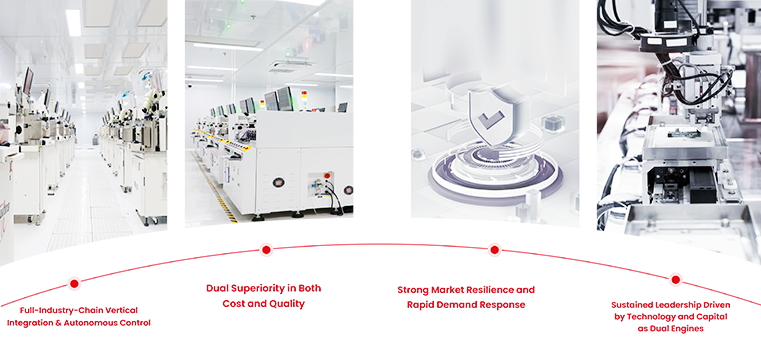
At Taimi (苔米), SSD products are tested with a focus on performance stability, firmware reliability, and system compatibility before being used in different application environments. Our Taimi SSD technology and reliability testing process covers key validation steps, including NAND flash screening, firmware verification, and system-level compatibility checks.
A reliable SSD should provide:
-
Consistent performance
-
Stable firmware behavior
-
Strong compatibility
-
Reliable data handling during demanding workloads
Frequently Asked Questions
Why is my cloned SSD detected in BIOS but Windows will not start?
BIOS detection only confirms that the motherboard can recognize the SSD. It does not confirm that Windows boot files are correctly configured.
Windows still requires:
-
Correct boot files
-
Compatible partition format
-
Working Windows Boot Manager
Check BIOS settings first, then verify EFI and GPT/MBR configuration.
Can I clone Windows 10 or Windows 11 to an SSD?
Yes.
SSD cloning is commonly used for:
-
HDD to SSD upgrades
-
SATA SSD to NVMe SSD migration
-
Moving Windows to a larger SSD
Make sure the SSD is compatible with your system and that all required partitions are included during cloning.
Can I clone a SATA SSD to an NVMe SSD?
Yes, but compatibility depends on:
-
Motherboard support
-
BIOS mode
-
Windows configuration
Before migration:
-
Confirm NVMe compatibility
-
Use UEFI boot mode when possible
-
Check partition settings
Is cloning better than reinstalling Windows?
Cloning is usually better when:
-
The current Windows system works properly
-
You want to keep applications and settings
-
You are upgrading storage
A clean installation may be better when:
-
Windows has serious errors
-
Driver conflicts exist
-
The system installation is very old
Why is my cloned SSD detected in BIOS but not booting?
BIOS detection only confirms that the motherboard recognizes the SSD. Windows still requires correct boot files, EFI partition configuration, and compatible GPT/MBR settings to start successfully.
Final Thoughts:
When a cloned SSD fails to boot, the problem is usually related to system configuration rather than SSD hardware itself.
The most common causes are:
-
BIOS boot settings
-
Boot partition problems
-
GPT/MBR compatibility issues
-
Windows startup file errors
By checking SSD detection, adjusting firmware settings, and repairing Windows boot information, most users can complete an SSD upgrade without reinstalling Windows.
Long-term SSD reliability depends on hardware quality, firmware stability, and compatibility validation throughout the product lifecycle.
Related Products
Recommended Articles
SVIAZ 2026 Recap: Moscow, Data, and Our Manufacturing Reality
2026-04-02
More
Laptop Still Slow? Stop Blaming the CPU and Fix Your Storage (2026)
2026-04-23
More
7000MB/s Peak Read vs. Sustained Write Lines in 4K Video Workflows
2026-04-24
More
Will SSD Prices Drop in 2026? Expert Analysis and Buying Guide
2026-05-08
More
PCIe vs. SATA SSD: A 2026 Engineer’s Guide to Storage Upgrades
2026-07-02
More
PCIe 4.0 vs. 3.0: An Engineering Reality Check on Performance
2026-07-08
More
Cloned SSD Won’t Boot After Migration? 7 Fixes to Start Windows Again
2026-07-13
More