


















When an SSD runs low on available storage space, users may notice slower large-file transfers, longer application installations, or less consistent write speeds. While everyday tasks such as booting the operating system or opening existing files are generally less affected, sustained write workloads can become noticeably slower.
Understanding how SSD controllers, NAND flash, and caching behave under high storage utilization helps PC builders, distributors, and storage buyers select the right drive configuration and maintain consistent performance.
Quick Answer
An SSD may experience slower write speeds when nearly full because limited free space can reduce the number of immediately available NAND blocks and shrink dynamic SLC cache capacity on certain models. Read performance is generally less affected. Actual behavior depends on the SSD controller, firmware, NAND configuration, and workload.
1. Does an SSD Always Slow Down at 90% Capacity?
No. There is no universal capacity threshold at which every SSD experiences a sudden performance drop. An SSD that is 90% full may still handle everyday office tasks or gaming normally, while the same drive may show reduced write throughput during large sequential file transfers, video editing, or other write-intensive workloads.
Whether performance decreases depends on several interacting factors:
- Workload pattern: Continuous, write-intensive tasks place greater demands on NAND block management than light daily usage or read-heavy workloads.
- Available free blocks: Limited free space can reduce the controller's flexibility when preparing storage locations for incoming data.
- NAND flash and caching design: Different NAND types and dynamic caching policies respond differently as storage utilization increases.
- Controller and firmware algorithms: Internal scheduling determines how efficiently the SSD handles background maintenance and incoming write requests.
For this reason, the percentage of used storage alone cannot determine whether an SSD will slow down. The drive's internal architecture and actual workload also matter.
2. Why Low Free Space Affects SSD Write Performance
Unlike traditional hard disk drives (HDDs), NAND flash cannot directly overwrite existing data in place. Before a physical block can be reused, the SSD controller must manage valid pages, move data when necessary, and erase the entire block.
When available space becomes limited, two potential bottlenecks can affect sustained write performance.
2.1 Reduced Dynamic SLC Cache Availability
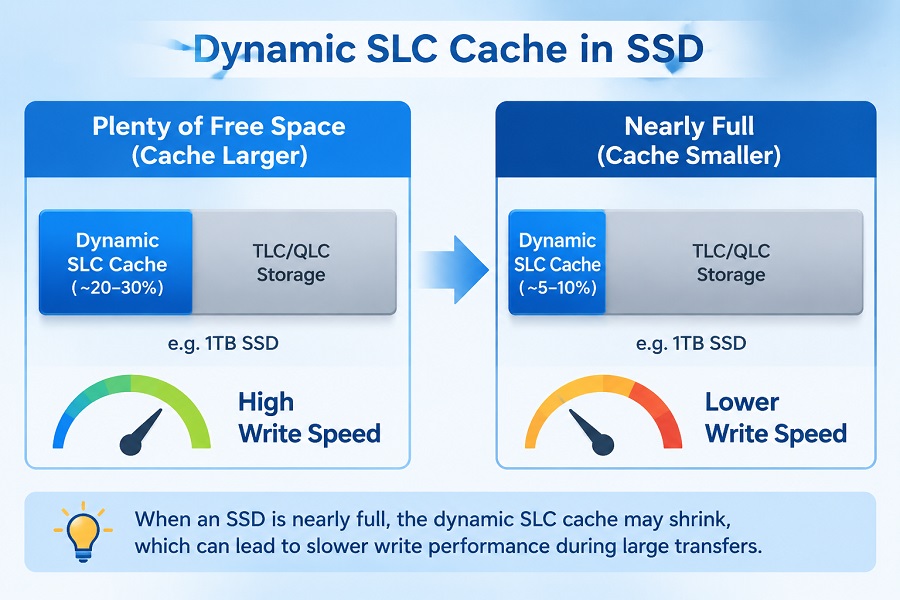
Many modern consumer SSDs use TLC or QLC NAND flash and rely on SLC caching to accelerate burst write speeds. In SSDs equipped with dynamic SLC cache, the firmware temporarily configures a portion of available NAND capacity to operate in a faster, SLC-like mode.
Because dynamic cache allocation can depend on available NAND capacity, higher storage utilization may reduce the size of this fast cache pool on certain models. During large or continuous file writes, a smaller cache can fill up sooner. Once the cache is exhausted, subsequent writes must proceed at the native write speed of the underlying NAND flash or at a lower sustained speed determined by the drive's firmware architecture.
However, caching policies vary across controller platforms and SSD models. Some drives use fixed or partially dynamic cache configurations, so cache shrinkage does not behave identically on every SSD.
To understand how this mechanism works, see our related guide: What Is SLC Cache in an SSD?
2.2 More Demanding Garbage Collection and Fewer Ready Blocks
NAND flash writes data in pages but erases data in much larger blocks. When files are deleted or modified, the SSD controller marks the corresponding pages as invalid. However, a physical block cannot be reused until Garbage Collection (GC) moves any remaining valid pages to another location and erases the outdated block.
When an SSD has sufficient free space, its controller can prepare erased blocks in the background. When available blocks become limited, the controller has fewer placement options and may need to perform additional data movement and block erasure while processing incoming host writes.
This increases internal write activity and can reduce write efficiency during sustained workloads. The free-space percentage displayed by an operating system also does not directly represent the number of immediately available NAND blocks. Firmware-reserved capacity and ongoing background operations affect internal block readiness as well.
TRIM also plays an important role in this process. Read more in our guide to SSD TRIM: What It Does and Why It Matters.

3. How SSD Hardware Architecture Influences Full-Drive Behavior
Two SSDs with the same visible free-space percentage can deliver noticeably different write performance because of differences in internal hardware and firmware design.
| Design Factor | Potential Impact Under High Storage Utilization |
|---|---|
| Storage Capacity | Higher-capacity models provide more total storage headroom and may offer greater NAND die parallelism, depending on the drive's design. Capacity alone does not guarantee better performance. |
| NAND Flash Type | TLC and QLC NAND have different native write characteristics. Post-cache write behavior depends on NAND characteristics and firmware management. |
| DRAM vs. DRAM-less (HMB) | Dedicated DRAM helps accelerate Flash Translation Layer (FTL) mapping lookups. DRAM-less SSDs may use Host Memory Buffer (HMB), where supported, to access a portion of system memory. Actual results depend on implementation and firmware. |
| Controller and Firmware | Controller efficiency, caching policies, and background Garbage Collection algorithms influence how effectively an SSD manages available blocks and sustained write workloads. |
For buyers comparing SSD configurations, the controller is an important part of the overall performance picture. See our article on how SSD controllers affect storage performance.
4. How Much Free Space Should You Leave on an SSD?
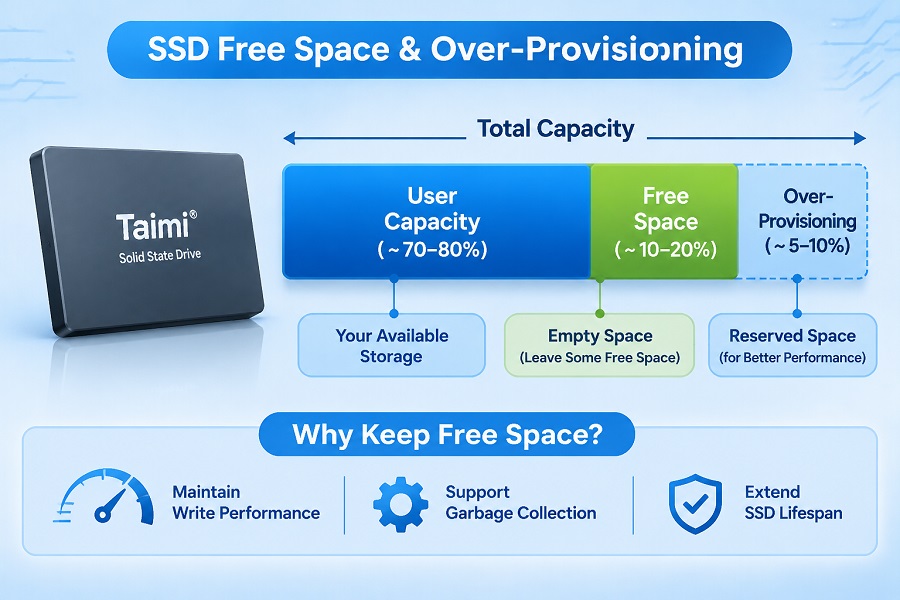
There is no single mandatory free-space percentage that applies to every SSD. Keeping approximately 10% to 20% of the drive free is a practical guideline for general computing. SSDs used for frequent large-file transfers, video production, or continuous recording may benefit from additional storage headroom.
The appropriate amount depends on the drive's capacity, firmware, workload, and caching design. The goal is to provide enough available space for incoming writes and internal block management, rather than follow a strict percentage rule.
Free Space vs. Over-Provisioning (OP)
Operating system free space and SSD Over-Provisioning (OP) are related, but they are not the same thing.
| Term | Definition | Main Purpose |
|---|---|---|
| User-Visible Free Space | Unused capacity within the file system that can be made available for new data. | Provides room for incoming writes and, when supported by TRIM and firmware, can contribute to dynamic cache allocation and internal block management. |
| Over-Provisioning (OP) | NAND capacity reserved beyond the user-addressable capacity for internal SSD operations. | Supports Garbage Collection, wear leveling, and bad-block management. |
Most consumer SSDs already include factory-reserved NAND capacity as part of their internal design. In specialized commercial or OEM deployments with predictable, heavy write workloads, engineers may evaluate custom firmware or partition-level OP adjustments based on the specific controller and NAND characteristics.
5. Practical Ways to Improve Performance When an SSD Is Nearly Full
If an SSD is running low on space and write performance has become inconsistent, the following steps may help:
- Offload Large Cold Files: Move archived projects, media libraries, or backups that do not require high-speed access to a secondary internal drive, external SSD, or network storage.
- Ensure TRIM Is Enabled: TRIM allows supported operating systems to inform the SSD when data blocks are no longer needed, helping the controller manage invalid pages proactively. TRIM supports ongoing block management, but it does not guarantee an immediate return to out-of-the-box speed on a heavily filled drive.
- Allow System Idle Time: After deleting large volumes of data, leaving the system powered on and idle can give background Garbage Collection time to consolidate and erase stale blocks, depending on the drive's firmware behavior.
- Check Drive Health, Temperature, and Firmware: Sluggish performance is not always caused by capacity limits. High controller temperatures, thermal throttling, outdated firmware, or operating system background tasks can also reduce write throughput.
- Consider Upgrading Capacity: If a workload consistently keeps the drive near full capacity, moving to a higher-capacity SSD with suitable interface, NAND, controller, endurance, and warranty specifications can provide greater operational headroom.
If large-file write speeds drop sharply after a short burst, cache exhaustion may also be involved. Our guide to why SSD write speed drops during large file transfers explains this behavior in more detail.
6. Frequently Asked Questions
Q1: Does an SSD automatically slow down when it is 90% full?
Not necessarily. An SSD does not drop in speed at a fixed percentage. Performance changes depend on available clean blocks, dynamic caching behavior, controller architecture, firmware, and the intensity of the write workload.
Q2: Does a nearly full SSD affect read speed or write speed more?
Write performance is more likely to be affected because writing new data requires block preparation, caching, and Garbage Collection. Reading existing data generally does not trigger the same block-management operations, so read performance is often less affected.
Q3: Does keeping an SSD nearly full shorten its lifespan?
Operating an SSD near full capacity can increase internal data movement and write amplification under certain workloads. Maintaining reasonable free space can support more efficient internal management, but overall SSD lifespan also depends on NAND endurance, firmware, workload, and total bytes written.
Q4: Can formatting or erasing an SSD restore its original write speed?
A standard quick format in an operating system mainly resets file system information and does not immediately erase all underlying NAND blocks. Depending on the SSD model and manufacturer utility support, a Secure Erase or NVMe Format command may help reset the drive's logical state. Always back up important data and follow the manufacturer's instructions before performing an erase operation. Actual post-erase performance still depends on the drive's hardware and firmware.
Q5: Will upgrading to a larger SSD always improve performance?
A larger-capacity SSD provides more total storage headroom and may offer greater NAND parallelism, which can help support consistent sustained writes. However, capacity alone does not guarantee better performance. Controller design, NAND flash type, caching strategy, and firmware tuning remain important factors.
Conclusion
An SSD may experience slower write performance when it is nearly full, primarily because dynamic SLC cache availability can decrease and Garbage Collection may become more demanding when internal block headroom is limited. Maintaining reasonable free space, ensuring TRIM is active, and selecting an SSD architecture suited to the workload can help support consistent performance over time.
For PC builders, distributors, and OEM buyers, evaluating NAND configuration, controller behavior, capacity, and sustained write performance is important when specifying storage for different applications.
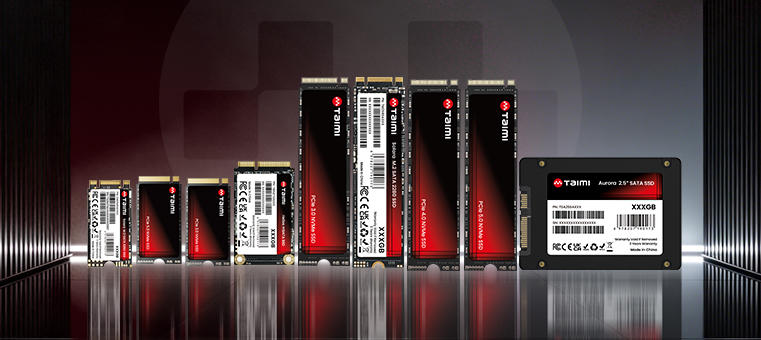
Taimi develops and manufactures consumer-grade SSDs, with key product lines including PCIe 3.0 and PCIe 4.0 NVMe SSDs, as well as 2.5-inch SATA SSDs. Buyers can discuss product specifications, sample testing, and bulk procurement requirements with the Taimi team.
Looking for a Reliable SSD Manufacturing Partner?
Contact Taimi to discuss NVMe SSD and 2.5-inch SATA SSD specifications, sample evaluation, and bulk procurement requirements.
Contact Taimi