








Quick Answer: Yes, you can use an M.2 SSD as an external drive by installing it in a compatible USB enclosure. The key is to match the enclosure to your SSD's interface—SATA or PCIe/NVMe—and physical size. Your actual transfer speed will depend on the SSD, enclosure, USB port, cable, and workload.
This guide explains how to choose an M.2 SSD enclosure, install and set up the drive, estimate external transfer speeds, and troubleshoot common connection problems.
What Do You Need to Use an M.2 SSD as an External Drive?
To turn an internal M.2 SSD into portable storage, you generally need three things:
- A compatible M.2 SSD enclosure: It must support your SSD's interface and physical dimensions.
- A USB cable: Use the cable supplied with the enclosure or another cable rated for its supported data speed.
- A compatible computer or device: The host must support the enclosure's USB connection and a file system it can read.
Before buying an enclosure, identify whether your drive uses SATA or PCIe/NVMe. Our M.2 SSD guide explains the difference between the M.2 form factor and the storage interface.
How to Choose the Right M.2 SSD Enclosure
1. Check Whether Your SSD Uses SATA or NVMe
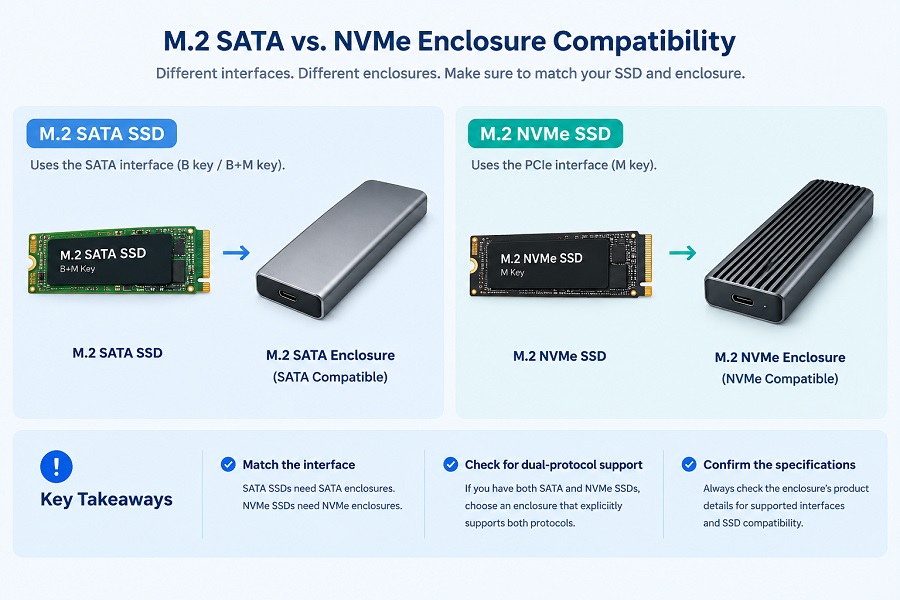
M.2 describes the physical form factor, not a single storage protocol. An M.2 SSD may use SATA or PCIe/NVMe, and these interfaces are not interchangeable in every enclosure.
Check the SSD's model number or product specifications before purchasing. Some enclosures support NVMe only, some support SATA only, and some are designed to support both.
| SSD Type | Enclosure Required | Important Note |
|---|---|---|
| M.2 SATA SSD | M.2 SATA-compatible enclosure | An NVMe-only enclosure will not work. |
| M.2 PCIe/NVMe SSD | M.2 NVMe-compatible enclosure | Check the enclosure's supported PCIe/NVMe specifications. |
| SATA and NVMe SSDs | Dual-protocol enclosure | Confirm that both protocols are explicitly supported. |
For more details about interface and form-factor compatibility, see our M.2 SSD compatibility guide.
2. Match the SSD's Physical Size
M.2 SSDs come in different lengths. The four-digit form-factor code indicates the module's width and length in millimeters. For example, an M.2 2280 SSD is approximately 22 mm wide and 80 mm long.
| Form Factor | Dimensions | What to Check |
|---|---|---|
| 2230 | 22 × 30 mm | Confirm the enclosure supports shorter modules. |
| 2242 | 22 × 42 mm | Check the mounting positions and included spacers. |
| 2280 | 22 × 80 mm | Confirm the enclosure's maximum supported length. |
Do not assume that an enclosure supports every M.2 size just because it is advertised as an M.2 enclosure. Check its product specifications before ordering.
3. Consider USB Speed and Cooling
The USB interface can limit the speed of your external SSD, even if the internal drive is capable of much higher performance. Check the enclosure's rated data-transfer interface and make sure your computer's USB port and cable support it.
Cooling is also important, particularly for high-performance NVMe SSDs. During large file transfers, an SSD controller can become hot and reduce performance through thermal throttling. An enclosure with a suitable thermal pad or heat-dissipation design can help manage temperatures.
How to Install and Set Up an External M.2 SSD
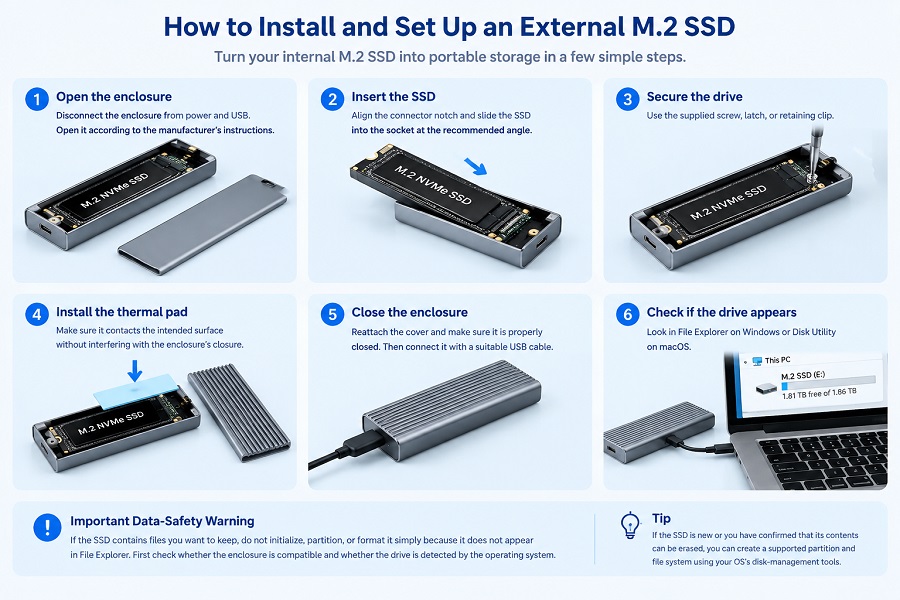
Most M.2 enclosures follow a similar installation process. Always follow the enclosure manufacturer's instructions, because the opening mechanism and mounting hardware vary by model.
- Disconnect the enclosure from power and USB. Open it according to the manufacturer's instructions.
- Insert the SSD. Align the connector notch and slide the SSD into the socket at the recommended angle.
- Secure the drive. Use the supplied screw, latch, or retaining clip.
- Install the thermal pad if provided. Make sure it contacts the intended surface without interfering with the enclosure's closure.
- Close the enclosure and connect it. Use the supplied or appropriately rated USB cable and connect it directly to a compatible port.
- Check whether the drive appears. Look in File Explorer on Windows or Disk Utility on macOS.
Important data-safety warning: If the SSD contains files you want to keep, do not initialize, partition, or format it simply because it does not appear in File Explorer. First check whether the enclosure is compatible and whether the drive is detected by the operating system. Formatting or initializing the wrong drive can make existing data inaccessible.
If the SSD is new or you have confirmed that its contents can be erased, you can create a supported partition and file system using your operating system's disk-management tools.
How Fast Is an M.2 SSD as an External Drive?
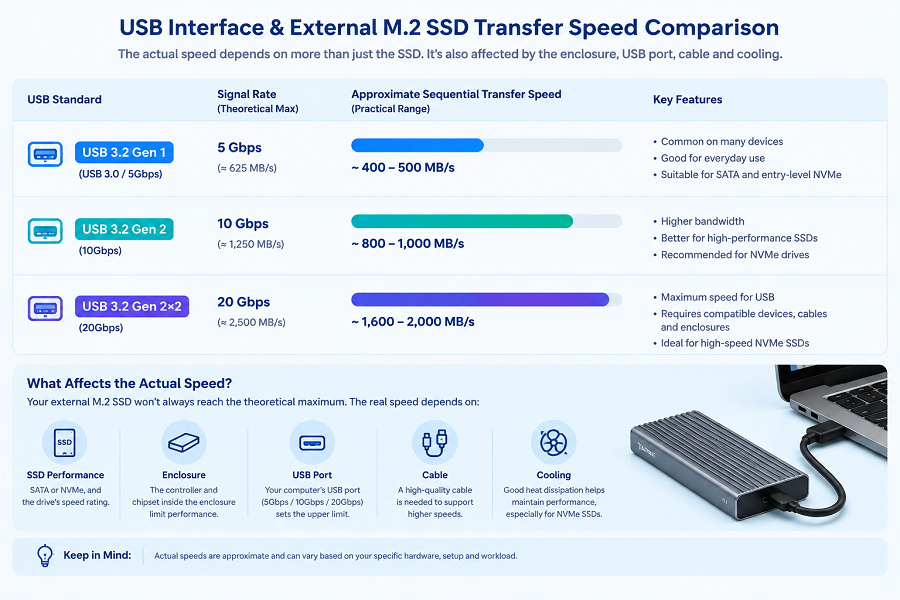
An external M.2 SSD can be much faster than a traditional hard drive, but the enclosure and USB connection may limit its performance. The following figures are approximate practical ranges for sequential transfers under suitable conditions, not guaranteed speeds.
| Connection Type | Signal Rate | Approximate Sequential Transfer Speed |
|---|---|---|
| USB 3.2 Gen 1 | 5 Gbps | Around 400–450 MB/s |
| USB 3.2 Gen 2 | 10 Gbps | Around 800–1,050 MB/s, depending on the setup |
| USB 3.2 Gen 2×2 | 20 Gbps | Can exceed 1,000 MB/s; results vary by device and workload |
| USB4 or Thunderbolt | Depends on the supported specification | Can support higher throughput with a compatible SSD enclosure and host |
These figures are illustrative, not direct conversions of interface signal rates into file-transfer speeds. Protocol overhead, enclosure controllers, cable quality, SSD performance, file size, and thermal conditions all affect the result. The host computer must also support the connection standard; a faster enclosure connected to a slower port will not deliver its full potential.
To measure the performance of your setup, follow our step-by-step SSD speed testing guide. Use consistent benchmark settings and remember that short benchmark results may differ from sustained file-transfer performance.
Common Problems with External M.2 SSDs
If your external SSD does not work as expected, check the connection, protocol compatibility, drive status, and temperature before assuming the SSD has failed.
| Problem | Possible Cause | What to Try |
|---|---|---|
| SSD is not detected | Protocol mismatch, loose connection, or faulty cable | Verify SATA/NVMe support, reseat the SSD with the device disconnected, and test another compatible cable or port. |
| Drive does not appear in File Explorer | No drive letter, unsupported file system, or an uninitialized new drive | Check Disk Management or Disk Utility. If the drive contains important data, do not initialize or format it until its status is understood. |
| Transfer speed is lower than expected | USB bottleneck, unsuitable cable, or thermal throttling | Check the host port and cable specifications, monitor temperature, and repeat the test under consistent conditions. |
| Drive disconnects during transfers | Connection instability, power issues, or excessive temperature | Try a direct USB port, inspect the cable and enclosure, and check cooling and power-management settings. |
M.2 SSD Enclosure vs. Portable SSD: Which Should You Choose?
An enclosure is useful when you already own an M.2 SSD and want to reuse it. A ready-made portable SSD is often more convenient if you want a complete storage device without assembling one yourself.
| Factor | M.2 SSD + Enclosure | Ready-Made Portable SSD |
|---|---|---|
| Best for | Reusing an existing SSD or customizing a setup | Convenient everyday portable storage |
| Setup | Requires checking compatibility and installing the SSD | Usually ready to connect and use |
| Flexibility | The SSD and enclosure can often be replaced separately | Depends on the product design |
| Performance | Depends on the SSD, enclosure, host, and cable | Depends on the drive and its external interface |
| Main consideration | Compatibility, assembly, and cooling | Product specifications, price, and warranty |
Frequently Asked Questions
1. Can I use an NVMe M.2 SSD as an external drive?
Yes. Install the SSD in an enclosure that explicitly supports PCIe/NVMe M.2 drives. To achieve higher transfer speeds, the enclosure, USB cable, and host port must support the required connection standard.
2. Can I use an M.2 SATA SSD externally?
Yes. You need an enclosure that supports M.2 SATA. An enclosure designed only for NVMe drives will not work with an M.2 SATA SSD, even if the drive appears to fit physically.
3. Does an enclosure reduce SSD speed?
It can. The USB interface, enclosure controller, cable, host port, and SSD itself can limit throughput. An external NVMe SSD may be much slower over USB than when connected directly to a suitable PCIe interface inside a computer.
4. Do I need to format an M.2 SSD before using it externally?
Not necessarily. If the SSD already contains a readable partition and compatible file system, you may be able to access it without formatting. Formatting erases existing data in many cases, so first confirm the drive's status and back up any important files.
5. Can I use the same external M.2 SSD on Windows and macOS?
Usually, yes, provided the enclosure is supported by both computers and the file system is compatible. exFAT is a common choice for transferring files between modern Windows and macOS systems. Back up existing files before changing a drive's file system.
6. Is an external M.2 SSD good for large file transfers?
It can be. A compatible NVMe SSD and high-speed enclosure can deliver strong transfer performance, but sustained speed depends on the drive, enclosure, connection, temperature, and workload. For large transfers, consider both sustained write performance and cooling rather than relying only on a short benchmark.
Final Thoughts
Using an M.2 SSD as an external drive is a practical way to reuse storage from an upgraded laptop or desktop. The most important steps are to match the enclosure's protocol and physical size to the SSD, confirm the USB connection's capabilities, and provide adequate cooling for sustained workloads.
If the SSD contains existing files, check its status carefully before making changes to partitions or formatting it. With the right enclosure and setup, an M.2 SSD can serve as flexible external storage for backups, file transfers, and everyday use.
Looking for an SSD Supplier for Your Project?
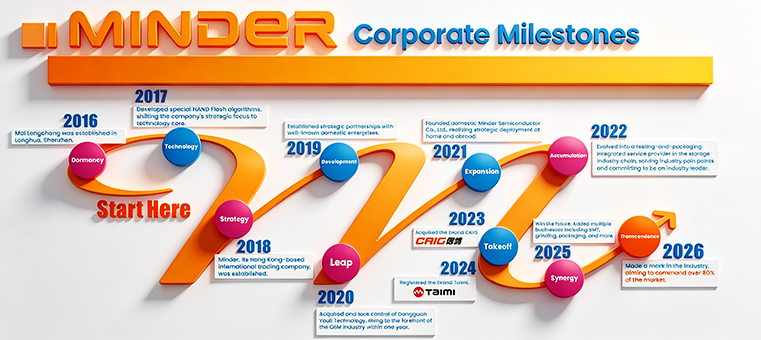
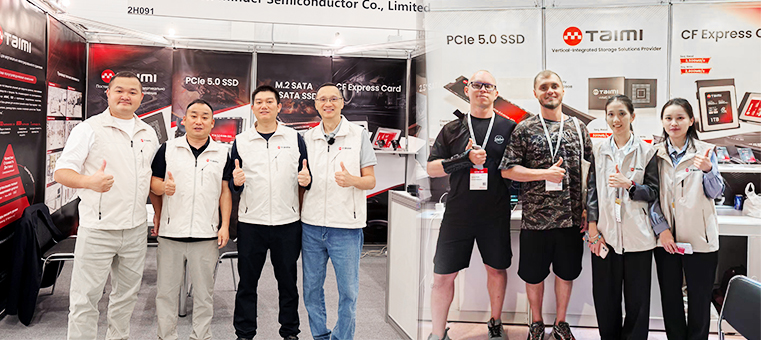
Taimi focuses on consumer-grade SSD development and manufacturing, supporting PC builders, distributors, and OEM projects with bulk purchasing requirements. Contact our team to discuss SSD specifications, sample evaluation, and potential supply cooperation.