
Company Introduction
More















SSD Not Detected in BIOS? What SSD Compatibility Testing Reveals
Share:
Quick Answer: Why Is My SSD Not Detected in BIOS?
An SSD that works correctly on one computer may not always be recognized by another system.
The problem is not necessarily the SSD itself. Common causes include the motherboard M.2 slot, SATA or PCIe interface, BIOS version, storage configuration, and firmware support.
Before replacing the SSD, check whether the drive and motherboard support the same storage interface and whether the system firmware supports the SSD.
Source: Taimi
Publish Time: 2026-07-17
An SSD that works correctly on one computer may not always be recognized by another system.
During SSD compatibility testing, we encountered a drive that passed testing on our internal platform. After moving the same SSD to another motherboard, the BIOS could not detect it.
The SSD itself was working normally.
The difference came from the system environment, including the motherboard slot, storage interface, and firmware support.
This type of situation shows why SSD evaluation cannot focus only on performance numbers. Compatibility between the SSD and different hardware platforms is also part of product validation.
Why an M.2 SSD Can Fit but Still Not Work
One common issue during SSD upgrades is the difference between physical installation and actual compatibility.
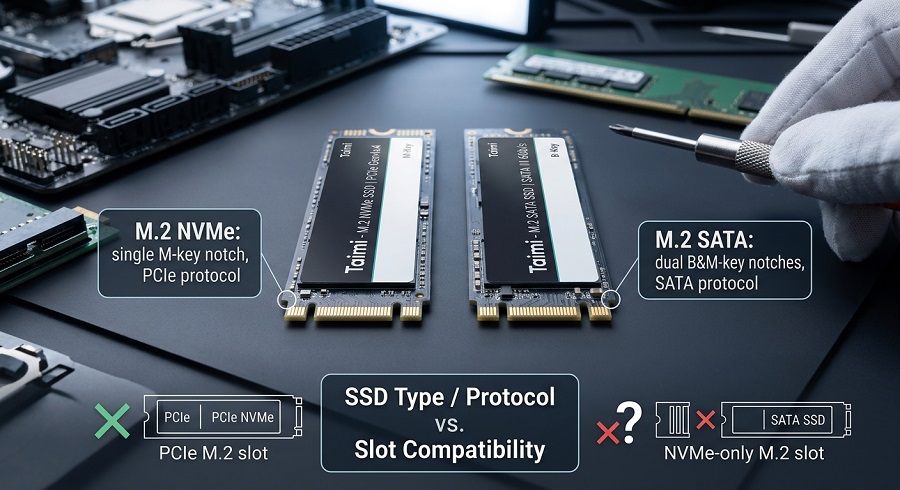
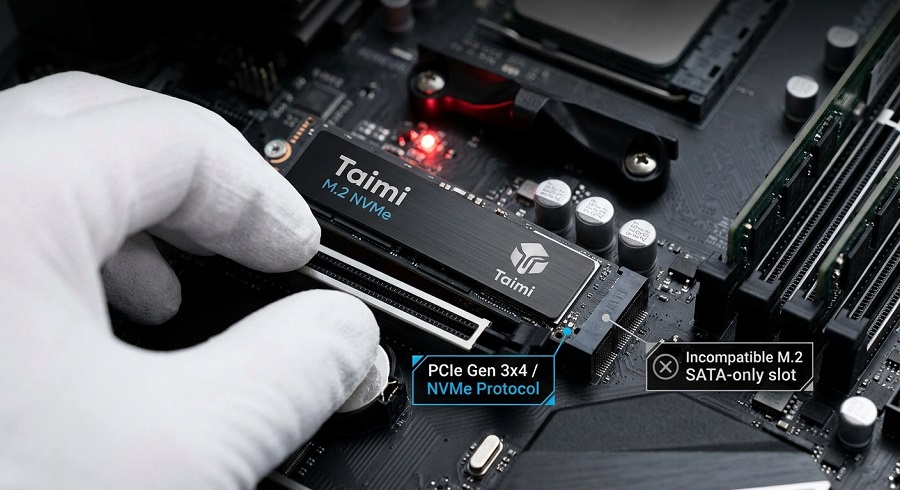
An M.2 SSD can fit into a motherboard slot, but the system may still fail to recognize the drive.
The reason is that M.2 describes the physical size of the SSD. The communication method depends on the SSD interface and motherboard design.
M.2 SATA SSDs and M.2 NVMe SSDs may look similar, but they use different protocols.
| SSD Type | Interface | Possible Result |
|---|---|---|
| M.2 SATA SSD | SATA protocol | May not work in an NVMe-only slot |
| M.2 NVMe SSD | PCIe protocol | May not work in a SATA-only slot |
For example, an M.2 SATA SSD installed in an NVMe-only slot can be mounted correctly and the computer can start normally.
However, BIOS cannot detect the SSD because the motherboard cannot communicate with the drive using the correct protocol.
The same situation can happen when an NVMe SSD is installed in a SATA-only M.2 slot.
This is one of the compatibility conditions checked during SSD platform testing.
What We Check When an SSD Does Not Appear in BIOS
When an SSD is missing from BIOS, replacing the drive is usually not the first step.
The first check is where communication between the SSD and the system stops.
For M.2 SSDs, the common checks include:
- SSD installation position
- M.2 slot specification
- SATA or PCIe support
- Secure mounting of the drive
For 2.5-inch SATA SSDs, the connection depends on both the SATA data cable and power cable.
A drive may receive power but still remain invisible in BIOS if the data connection is interrupted.
BIOS and Firmware Compatibility
BIOS is responsible for initializing hardware before the operating system starts.
If an SSD does not appear in BIOS, Windows settings are not usually the cause because the system has not reached the operating stage yet.
Some detection problems are related to:
- Older motherboard platforms
- Limited NVMe support
- BIOS versions
- Storage configuration settings
- NVMe support settings
Firmware support can also affect compatibility.
A newer SSD may require updated motherboard firmware when used with older platforms.
However, a BIOS update cannot add support for a storage interface that the motherboard hardware does not provide.
PCIe Generation Differences in SSD Compatibility
During SSD testing, PCIe generation differences usually affect performance rather than basic detection.
For example, a PCIe 4.0 NVMe SSD can normally operate on a PCIe 3.0 motherboard.
The drive can communicate with the system, but the available bandwidth is limited by the older PCIe platform.
This means the SSD may work correctly while running below its maximum rated speed.
If an SSD is detected correctly but does not reach its expected performance, engineers usually check factors such as PCIe bandwidth, motherboard compatibility, firmware behavior, and thermal conditions. For more details, see our guide: Why Is My SSD Slow After Installation? Causes and Fixes Explained.
The situation is different from an interface mismatch.
A PCIe NVMe SSD installed in a SATA-only M.2 slot may not appear in BIOS because the communication method is different.
When BIOS Detects the SSD but Windows Does Not
Not every SSD recognition issue happens before startup.
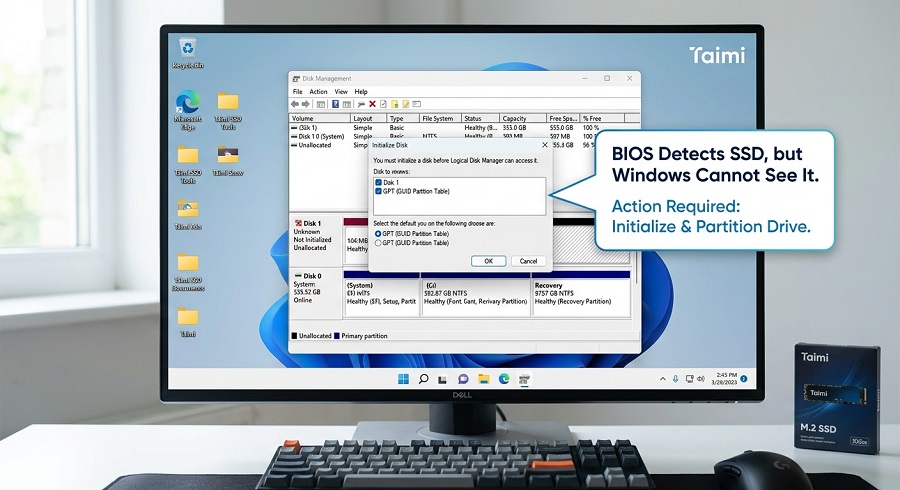
Sometimes BIOS shows the SSD correctly, but Windows cannot find the drive.
In this situation, the hardware connection is usually working.
The next check is Windows Disk Management.
A new SSD may appear as:
- Uninitialized disk
- Unallocated space
- Offline drive
After initialization and partition setup, Windows can normally access the SSD.
This is different from an SSD that is completely missing from BIOS.
When an SSD Is Detected but Windows Cannot Boot
SSD upgrades often involve cloning an existing system drive.
After cloning, some users find that BIOS detects the SSD but Windows cannot start.
In this case, the problem is usually related to system migration rather than SSD detection.
Possible causes include:
- Incorrect UEFI or Legacy boot settings
- Missing boot files
- Partition structure differences
- Problems during cloning
Checking the Windows boot environment is more useful than replacing the SSD.
Finding the Source of the Problem
One simple method can help separate an SSD problem from a computer compatibility issue.
Testing the SSD on another compatible system can provide useful information.
| Test Result | Possible Cause |
|---|---|
| SSD works on another system | Original motherboard or BIOS compatibility |
| SSD is not detected on multiple systems | Possible SSD hardware or firmware issue |
| SSD disconnects during use | Connection or stability problem |
| BIOS detects SSD but Windows does not | Operating system configuration |
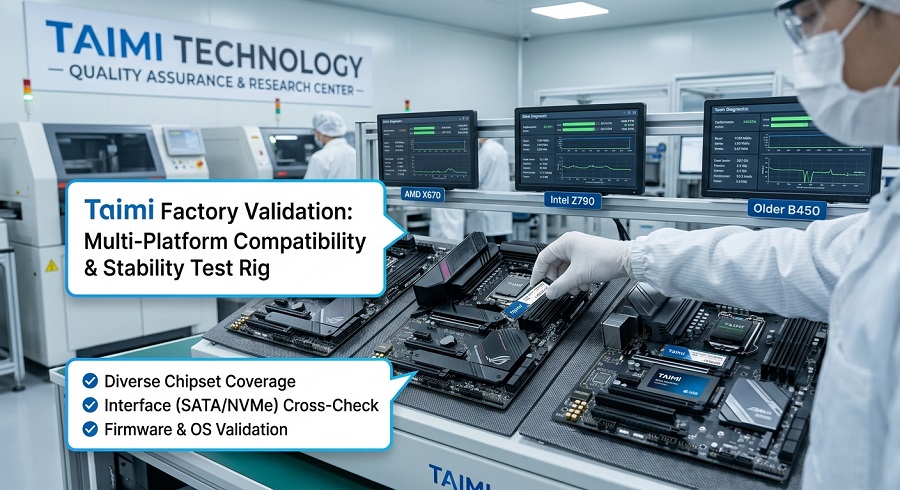
This method is also used during SSD validation because a storage product needs to perform consistently across different hardware environments.
Why SSD Compatibility Testing Matters
Benchmark results show SSD performance under specific test conditions.
They do not always represent how a drive behaves after installation in different computer systems.
During compatibility testing, SSDs are checked for detection stability, platform support, and consistent operation across different hardware environments.
At Taimi, SATA SSD and PCIe NVMe SSD products go through compatibility checks together with performance evaluation before shipment. These checks build on our strict factory quality control—see our deep dive into Taimi’s SMT production process to learn how we prevent hardware-level connection failures at the soldering stage.
FAQ: SSD Not Detected in BIOS
Q1: Why is my SSD not detected in BIOS?
Common causes include an incompatible M.2 slot, SATA or PCIe interface mismatch, motherboard limitations, BIOS settings, firmware support, or an insecure physical connection. Testing the SSD on another compatible system can help determine whether the issue comes from the SSD or the original computer.
Q2: Can an M.2 SSD fit but still not work?
Yes. M.2 describes the physical form factor, not necessarily the communication protocol. An M.2 SATA SSD may not work in an NVMe-only slot, while an M.2 NVMe SSD may not work in a SATA-only slot.
Q3: Can a PCIe 4.0 SSD work on a PCIe 3.0 motherboard?
A PCIe 4.0 NVMe SSD can normally operate on a PCIe 3.0 motherboard. The SSD can communicate with the system, but its performance will be limited by the available PCIe 3.0 bandwidth.
Q4: Why does BIOS detect my SSD but Windows does not?
If BIOS detects the SSD but Windows does not, the hardware connection is usually working. The SSD may need to be initialized, partitioned, or brought online through Windows Disk Management.
Q5: Should I update BIOS if my SSD is not detected?
A BIOS update may help when an older motherboard has firmware-related compatibility limitations. However, updating BIOS cannot add support for a storage interface that the motherboard hardware does not provide.
Q6: How can I tell whether the SSD or motherboard is causing the problem?
Test the SSD on another compatible computer. If the SSD works normally on another system, the original motherboard, M.2 slot, BIOS, or configuration may be responsible. If the SSD is not detected on multiple compatible systems, the SSD hardware or firmware may require further investigation.
Conclusion
SSD behavior is closely related to the system where it is installed.
A drive that works correctly on one platform may require different support on another motherboard.
This is why compatibility checks are part of SSD development, together with performance and reliability testing. To learn how these steps are integrated into our full production line, see our comprehensive guide on the SSD manufacturing and testing process.
Looking for Reliable SSD Solutions?
Need SSD solutions for PC builders, system integrators, distributors, or OEM projects? Taimi can support SSD selection, compatibility evaluation, performance validation, and volume supply based on your application requirements.
Contact Taimi for SSD SolutionsRelated Products
Recommended Articles
SSD TBW Explained: What It Means and How It Affects SSD Lifespan
2026-07-15
More
Cloned SSD Won’t Boot After Migration? 7 Fixes to Start Windows Again
2026-07-13
More
PCIe 4.0 vs. 3.0: An Engineering Reality Check on Performance
2026-07-08
More
Taimi SSD Technology: Wafer-Level Testing & Signal Integrity for Enterprise SSD Reliability
2026-07-06
More
PCIe vs. SATA SSD: A 2026 Engineer’s Guide to Storage Upgrades
2026-07-02
More
PCIe 4.0 vs. SATA SSD: Choosing the Right Storage for OEM Projects (No Fluff)
2026-06-26
More
New SSD Not Showing Up? Here's How to Fix It in 3 Simple Steps (2026 Guide)
2026-07-03
More