
Company Introduction
More











How to Check If Your Laptop Supports an SSD Upgrade: SSD Compatibility Guide (2026)
Share:
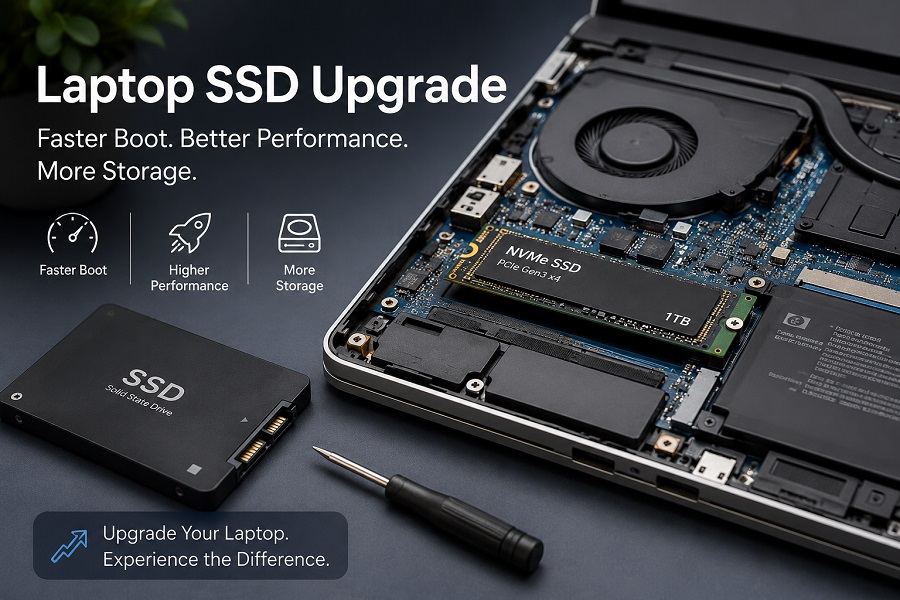
Upgrading to an SSD is one of the most effective ways to improve laptop performance. A new SSD can significantly reduce boot times, speed up application loading, and provide more storage space compared with traditional hard drives.
However, before purchasing an SSD, you need to answer one important question:
Does your laptop support an SSD upgrade?
The answer depends on several factors, including:
- SSD form factor
- Storage interface
- Available SSD slot
- Laptop model specifications
- Supported storage capacity
This guide explains how to check SSD compatibility, identify the correct SSD type, and avoid buying a drive that does not work with your laptop.
Quick Answer: How Do I Know If My Laptop Supports an SSD Upgrade?
To check whether your laptop supports an SSD upgrade, confirm these five points:
| Check Item | What You Need to Confirm |
|---|---|
| Laptop model | Official specifications from the manufacturer |
| SSD type | SATA SSD or NVMe SSD |
| SSD form factor | 2.5-inch or M.2 SSD |
| M.2 size | 2230, 2242, or 2280 |
| Storage capacity | Supported SSD capacity |
If your laptop has an available SATA drive bay or M.2 SSD slot, it can usually be upgraded.
Can Every Laptop Be Upgraded with an SSD?
The short answer is:
No.
Most traditional laptops support storage upgrades, but some modern ultra-thin laptops use soldered storage. In these designs, the SSD is directly attached to the motherboard and cannot be replaced.
Common situations include:
| Current Storage Design | Upgrade Possibility |
|---|---|
| 2.5-inch HDD | Replace with 2.5-inch SATA SSD |
| 2.5-inch SATA SSD | Replace with larger SATA SSD |
| M.2 SSD slot | Upgrade with compatible M.2 SSD |
| Soldered storage | Usually not upgradeable |
Before purchasing an SSD, always confirm your laptop hardware specifications.
Step 1: Check Your Laptop Model Specifications
The safest way to determine SSD compatibility is to check your laptop model information.
First, find your exact laptop model. Examples:
- Dell Inspiron series
- Lenovo ThinkPad series
- HP Pavilion series
- ASUS VivoBook series
Then search:
Laptop model + specifications
Check the storage section for information such as:
- Supported SSD type
- SATA or PCIe interface
- Available M.2 slot
- Maximum storage support
Manufacturer specifications are usually the most reliable source for upgrade information.
Step 2: Identify Your Current SSD or Storage Type
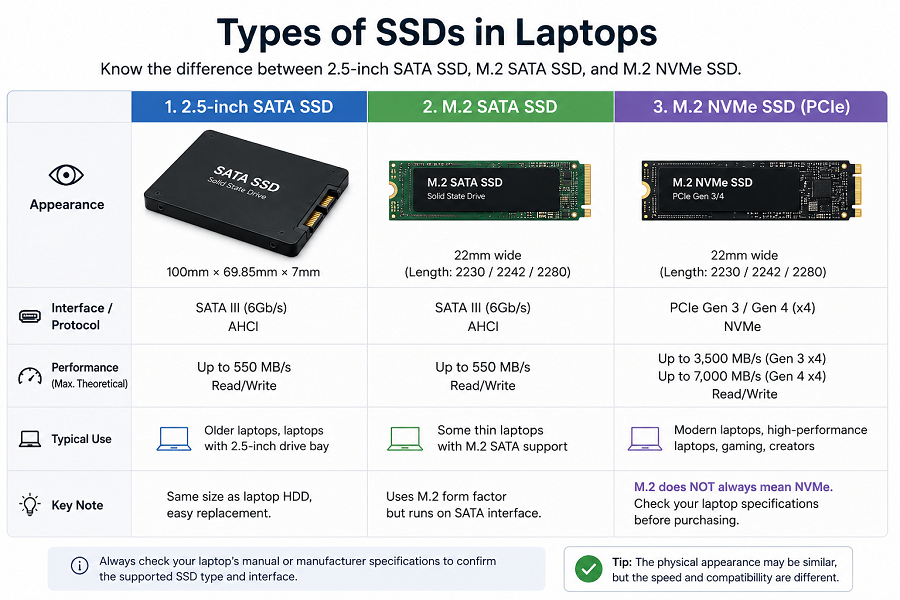
Before upgrading, determine what type of storage your laptop currently uses. Modern laptops mainly use three SSD formats.
1. 2.5-inch SATA SSD
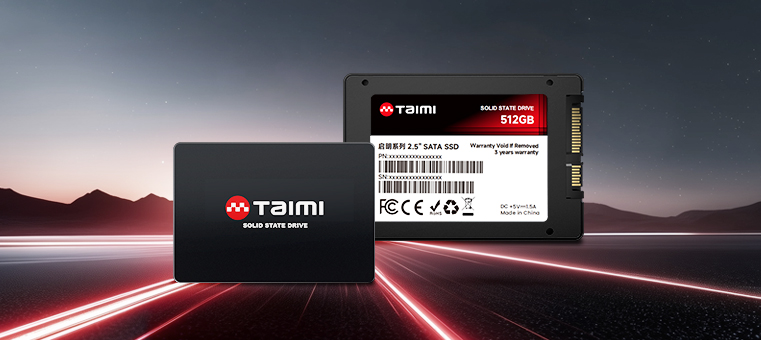
A 2.5-inch SATA SSD is commonly used as a replacement for traditional laptop hard drives.
- Uses SATA III interface
- Same physical size as many laptop HDDs
- Typical speeds around 500–600MB/s
For older laptops still using HDD storage, replacing the hard drive with a SATA SSD is one of the simplest upgrades.
2. M.2 SATA SSD
M.2 SATA SSDs use the compact M.2 form factor but communicate through the SATA interface.
One important thing to remember:
M.2 does not always mean NVMe.
Two M.2 SSDs may have the same physical appearance but use different communication protocols.
3. M.2 NVMe SSD
M.2 NVMe SSDs use the PCIe interface and provide much higher performance compared with SATA SSDs.
- Higher sequential read/write speeds
- Lower latency
- Better performance for gaming, creative workloads, and professional applications
For more information: What Is an NVMe SSD? Complete Guide to Speed, Gaming Performance, Compatibility, and SSD Selection (2026)
Step 3: Check SSD Form Factor and Physical Size
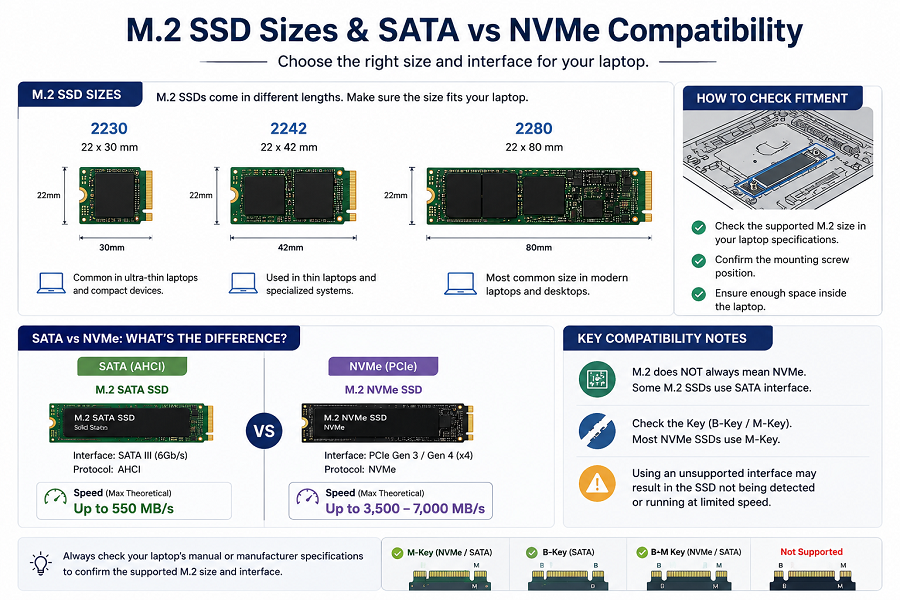
Even if your laptop supports an M.2 SSD, the physical size must match the available slot. Common M.2 SSD sizes include:
| M.2 Size | Common Usage |
|---|---|
| 2230 | Compact laptops and small devices |
| 2242 | Thin laptops and specialized systems |
| 2280 | Most modern laptops and desktops |
The most common format today is: M.2 2280
Before buying an M.2 SSD, check:
- SSD length
- Available internal space
- Mounting screw position
For detailed information about M.2 sizes and compatibility: M.2 SSD Compatibility: Sizes, Keys, Bus Protocols, and OEM Validation
Step 4: Check SATA vs NVMe SSD Compatibility
One of the most common SSD upgrade mistakes is choosing the wrong interface. Although M.2 SATA and M.2 NVMe SSDs look similar, they are not always interchangeable.
| SSD Type | Interface | Typical Application |
|---|---|---|
| 2.5-inch SATA SSD | SATA III | Older laptops |
| M.2 SATA SSD | SATA | Some thin laptops |
| M.2 NVMe SSD | PCIe | Modern laptops |
Before purchasing, confirm whether your laptop supports:
- SATA SSD only
- PCIe NVMe SSD
- Both SATA and NVMe
Installing an unsupported SSD type may cause the drive to be unavailable or not detected.
Step 5: Choose the Right SSD Capacity
After confirming compatibility, choose the storage capacity based on your usage.
512GB SSD
Suitable for:
- Office work
- Web browsing
- Basic applications
- Student computers
1TB SSD
Suitable for:
- Gaming
- Professional software
- Multiple applications
- General long-term use
2TB SSD
Suitable for:
- Video editing
- Large project files
- Game libraries
- Heavy storage requirements
Learn more: How Much SSD Storage Do You Need? 512GB vs. 1TB vs. 2TB SSD
Step 6: Consider SSD Upgrade Preparation
Before replacing your SSD, consider how you will move your operating system and files. Two common options are:
Clone Your Existing Drive
Advantages:
- Keeps Windows settings
- Keeps installed software
- Faster migration
Fresh Windows Installation
Advantages:
- Cleaner system
- Removes unnecessary files
- Provides a fresh start
For most users upgrading from HDD to SSD, cloning is a convenient option.
SSD Upgrade Compatibility Checklist
Before purchasing an SSD, confirm:
- ✅ Laptop model
- ✅ SSD form factor
- ✅ SATA or NVMe support
- ✅ M.2 size (if applicable)
- ✅ Required storage capacity
Checking compatibility before buying helps prevent installation problems and unnecessary returns.
Frequently Asked Questions
Can I upgrade my laptop from HDD to SSD?
Yes. Most laptops using a 2.5-inch HDD can be upgraded to a 2.5-inch SATA SSD. This upgrade usually provides a significant improvement in boot speed and system responsiveness.
How do I know what SSD fits my laptop?
Check your laptop manufacturer specifications or identify your existing storage drive to confirm the SSD size and interface.
Does my laptop support NVMe SSD?
It depends on the motherboard design. Many modern laptops support M.2 PCIe NVMe SSDs, while older models may only support SATA storage.
Can I replace my HDD with an NVMe SSD?
No. NVMe SSDs require PCIe support and an M.2 NVMe slot. Older laptops with only SATA storage cannot use NVMe SSDs directly.
Final Thoughts
Checking compatibility before upgrading is the most important step to ensure a successful laptop storage upgrade.
Before buying an SSD, always confirm:
- Laptop model
- SSD type
- Physical size
- Interface compatibility
- Storage capacity
Choosing the correct SSD can extend your laptop’s usable life and provide a faster, smoother computing experience.
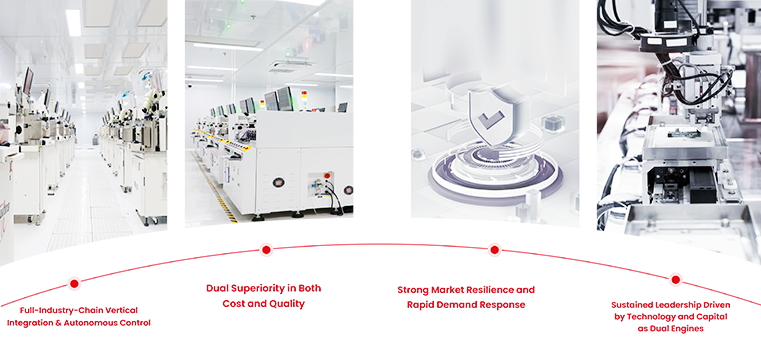
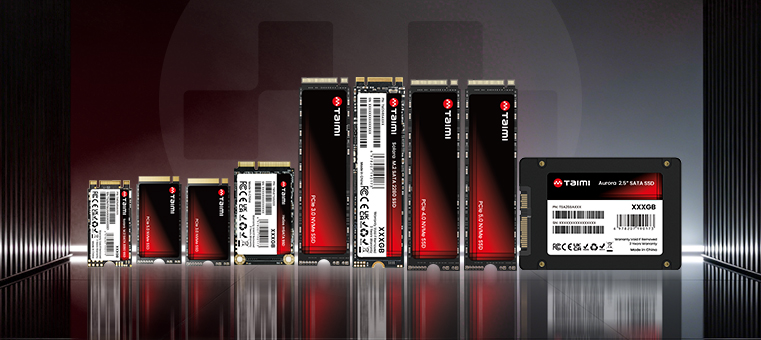
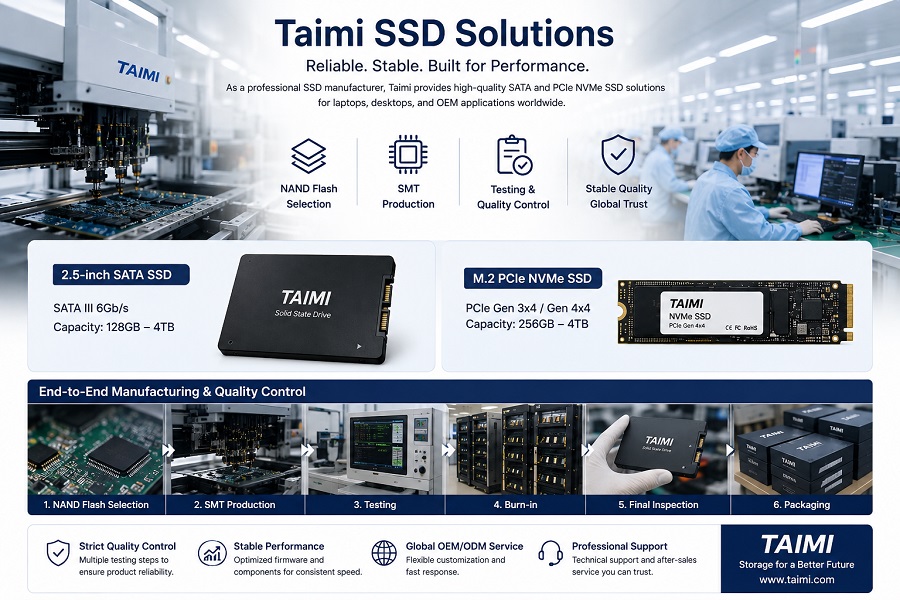
As an SSD manufacturer, Taimi provides reliable SATA SSD and PCIe NVMe SSD solutions for laptops, desktops, and OEM computer applications. Through NAND Flash selection, SMT production, testing, and quality control processes, Taimi focuses on delivering stable and consistent SSD products for global customers.
Related Products
Recommended Articles
How Much SSD Storage Do You Need? 512GB vs. 1TB vs. 2TB SSD
2026-08-24
More
SSD Buying Guide 2026: How to Choose the Right SSD for PC, Laptop, and OEM Applications
2026-08-21
More
What Is a PCIe SSD? Speed, NVMe, and Compatibility Guide (2026)
2026-08-19
More
M.2 SSD Compatibility: Sizes, Keys, Bus Protocols, and OEM Validation
2026-08-17
More
What Is an NVMe SSD? Complete Guide to Speed, Gaming Performance, Compatibility, and SSD Selection (2026)
2026-08-12
More
What Is a SATA SSD? Speed, Benefits, Compatibility, and Applications (2026 Guide)
2026-08-14
More
TLC vs QLC SSD: Performance, Endurance, Lifespan, and Which NAND Is Better?
2026-07-27
More
From NAND Flash to Finished SSD: Inside the SSD Manufacturing and Testing Process
2026-07-20
More