
Company Introduction
More















Why an SSD Is Detected in BIOS but Not Showing in Windows
Share:
During SSD deployment and compatibility testing, engineers sometimes encounter a situation that appears unusual:
The SSD is recognized by BIOS, but the operating system cannot access the drive.
For end users, this can look like a contradiction. If the motherboard can identify the SSD, why does Windows fail to display it?
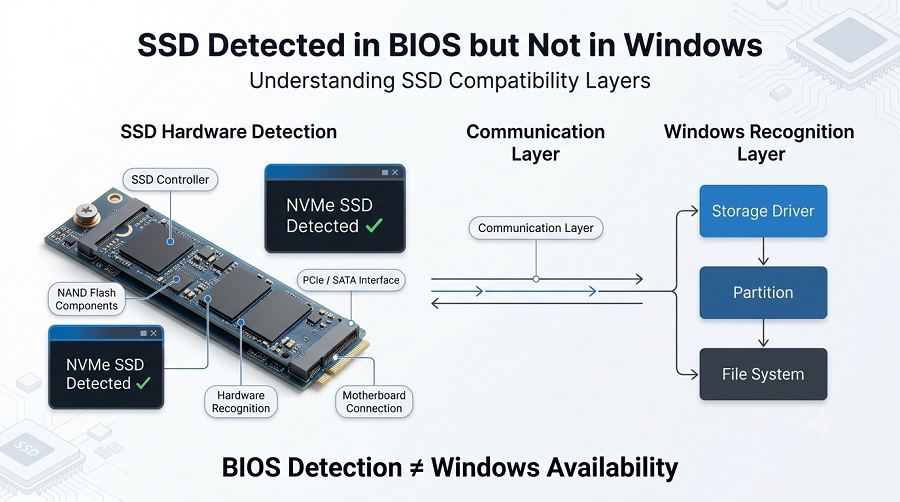
From a storage engineering perspective, there is no contradiction. BIOS recognition and operating system availability are two different stages of SSD communication.
BIOS confirms that the storage device can communicate with the motherboard. Windows requires additional layers of support, including controller drivers, partition information, and file system recognition, before the SSD becomes available for normal use.
Understanding this difference is important not only for troubleshooting, but also for SSD design and validation.
Quick Answer
If an SSD appears in BIOS but not in Windows, the hardware connection is usually working correctly. The issue is often related to the operating system layer, including storage drivers, disk initialization, partition settings, or platform compatibility.
If an SSD is not detected even in BIOS, the problem usually occurs earlier in the communication process, such as hardware connection, interface compatibility, or platform support. For more details, see our guide on SSD BIOS detection issues and compatibility testing.
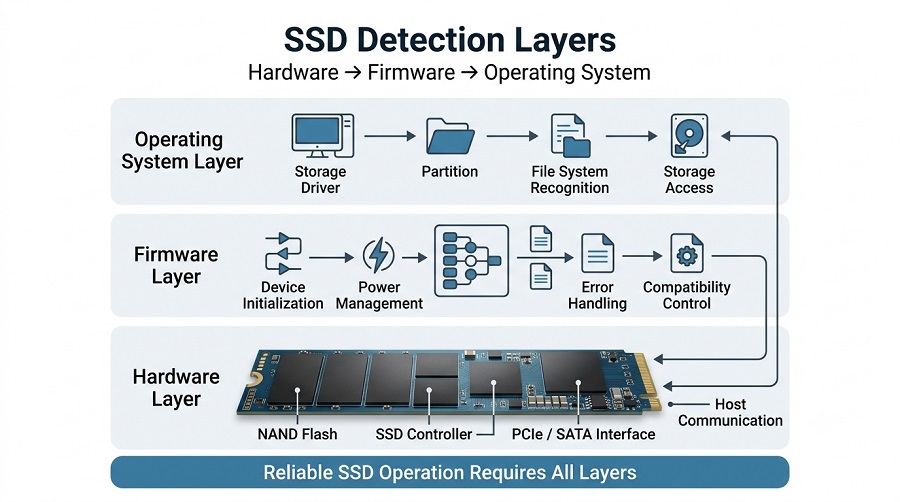
SSD Detection Does Not Happen in a Single Step
An SSD does not simply switch from “not detected” to “working.”
The communication process involves several layers.
Hardware Layer
At the hardware level, the system checks whether:
- The SSD controller responds correctly
- The PCIe or SATA interface is connected properly
- The motherboard can establish communication
If the SSD appears in BIOS, this layer is usually functioning. To learn how physical hardware reliability is secured on the factory floor, see how we use 3D SPI and BGA X-Ray in
Firmware Layer
The SSD firmware controls how the storage device communicates with the host system.
Firmware affects:
- Device initialization
- Power management
- Compatibility behavior
- Error handling
Different motherboard platforms may interact with SSD firmware differently, which is why compatibility testing is important.
Operating System Layer
After Windows starts, the operating system performs additional tasks:
- Loading storage drivers
- Reading partition information
- Recognizing the file system
- Assigning storage access
A failure at this stage can make an SSD appear in BIOS but remain unavailable in Windows. In some cases, Windows may detect the SSD but show it as “Not Initialized” because it cannot read valid partition information. Learn more about SSD initialization issues in Windows and how to fix them.
Why Does This Situation Happen in Real Applications?
New SSD Deployment
One of the most common scenarios occurs when installing a new SSD.
A newly manufactured SSD contains:
- NAND Flash memory
- SSD controller
- Firmware configuration
- Factory validation data
However, it may not contain a user partition.
The motherboard can detect the SSD because the hardware communication is working correctly.
Windows may not display the drive because the operating system has not yet been given a usable storage volume.
This is expected behavior for many new SSD installations.
System Migration and SSD Cloning
Another common situation appears after migrating Windows from one drive to another.
For example:
- Replacing a SATA SSD with an NVMe SSD
- Upgrading storage capacity
- Deploying cloned systems across multiple computers
The SSD may appear correctly in BIOS but behave differently after Windows loads.
Possible reasons include:
- Different storage controller settings
- Driver differences
- Partition configuration changes
- Boot mode differences
This is why SSD migration projects require more than checking whether the system can boot once.
Long-term stability across different platforms is equally important.
Different Motherboard Platforms
An SSD model that works correctly on one system may require additional validation on another.
The reason is that storage performance and compatibility depend on the complete platform environment:
- Motherboard firmware
- PCIe implementation
- Storage controller configuration
- Operating system drivers
For OEM applications, SSD manufacturers often need to evaluate products across multiple hardware platforms before mass deployment.
How Engineers Analyze SSD Detection Problems
When engineers investigate an SSD detection issue, the first question is not whether the SSD is defective.
The first question is:
At which layer does communication stop?
A typical analysis process includes:
Confirm Hardware Recognition
If BIOS identifies the SSD model, engineers know that basic communication between the host and SSD controller is established.
Check Operating System Communication
The next step is verifying:
- Storage controller drivers
- NVMe/SATA configuration
- Windows storage management status
Verify Disk Configuration
Windows may recognize the SSD but fail to display it because of:
- Missing partition
- Incorrect disk status
- File system problems
Review Platform Compatibility
For newer systems, engineers also check:
- BIOS version
- Storage mode settings
- Firmware compatibility
This approach avoids unnecessary replacement of functional SSD hardware.
SSD Compatibility Validation Behind Reliable Storage Products
For SSD manufacturers, compatibility is not simply about making a drive appear during startup.
A reliable SSD must maintain stable operation across different environments.
During SSD validation, engineers evaluate:
Firmware Behavior
Firmware optimization affects:
Device initialization
Error recovery
Power management
Long-term stability
NAND Technology Compatibility
Different NAND technologies, such as TLC and QLC, may require different firmware optimization strategies to balance performance, endurance, and reliability.
Interface Compatibility
For NVMe SSDs, validation includes:
- PCIe link stability
- Different motherboard platforms
- Various PCIe generations
For SATA SSDs, testing focuses on:
- SATA controller compatibility
- Data transfer stability
- Power behavior
Real-World Workload Testing
Storage devices are used in many environments, including:
- Consumer PCs
- Industrial equipment
- Embedded systems
- OEM products
Therefore, validation must consider more than benchmark performance.
A drive that achieves high sequential speed but experiences compatibility issues in deployment does not provide a reliable storage solution.
How Taimi Approaches SSD Compatibility
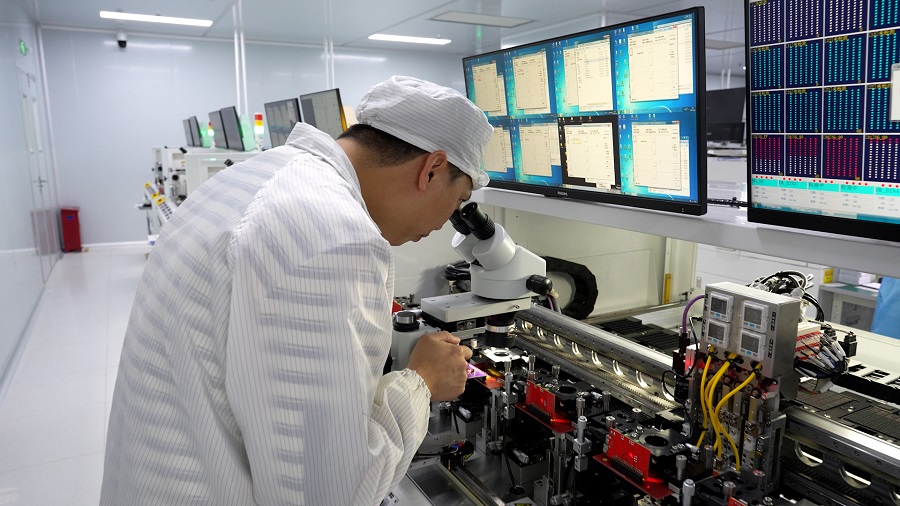
At Taimi, as an SSD manufacturer, SSD development and manufacturing focus on the complete product lifecycle, from component selection and firmware optimization to manufacturing testing and platform validation.
Understanding the complete SSD manufacturing and testing process is also essential for ensuring product consistency and long-term reliability across different applications.
During SSD validation, engineers pay attention to:
- Controller and NAND compatibility
- Firmware stability
- Host platform behavior
- Long-term read/write consistency
For OEM customers, compatibility testing helps reduce deployment risks when SSD products are integrated into different hardware environments.
The goal is not only to build a fast SSD, but to build storage products that operate reliably after installation.
Frequently Asked Questions
Why does my SSD show in BIOS but not in Windows?
Because BIOS only confirms hardware communication. Windows requires additional support, including drivers, partitions, and file system recognition.
Does BIOS detection mean my SSD is working correctly?
It confirms that the SSD controller can communicate with the motherboard, but further testing is required to verify full operating system compatibility.
Why is my NVMe SSD detected in BIOS but missing during Windows installation?
Common reasons include storage controller settings, missing drivers, or platform compatibility issues.
Can SSD firmware affect Windows detection?
Yes. Firmware controls important communication and compatibility functions between the SSD and host system.
Why do OEM customers need SSD compatibility testing?
Because SSD behavior can vary across motherboard platforms, firmware environments, and operating systems.
Conclusion
An SSD appearing in BIOS but not in Windows is usually not a simple hardware failure.
The difference comes from the fact that SSD recognition involves multiple layers, from hardware communication to firmware behavior and operating system management.
For SSD manufacturers, solving these challenges requires careful validation beyond basic detection. Firmware optimization, platform testing, and manufacturing quality control are all essential parts of building reliable storage solutions.
Need SSD Solutions for Your OEM Projects?
Platform compatibility and firmware stability are critical for reliable deployment. Taimi provides validated SSD solutions for OEM applications, supported by firmware optimization, compatibility testing, and manufacturing expertise.
Contact our engineering team to discuss SSD validation, OEM requirements, or custom storage solutions.
Related Products
Recommended Articles
From NAND Flash to Finished SSD: Inside the SSD Manufacturing and Testing Process
2026-07-20
More
SSD Not Detected in BIOS? What SSD Compatibility Testing Reveals
2026-07-17
More
SSD TBW Explained: What It Means and How It Affects SSD Lifespan
2026-07-15
More
Cloned SSD Won’t Boot After Migration? 7 Fixes to Start Windows Again
2026-07-13
More
New SSD Not Showing Up? Here's How to Fix It in 3 Simple Steps (2026 Guide)
2026-07-03
More
Taimi SSD Technology: Wafer-Level Testing & Signal Integrity for Enterprise SSD Reliability
2026-07-06
More
PCIe 4.0 vs. 3.0: An Engineering Reality Check on Performance
2026-07-08
More
PCIe vs. SATA SSD: A 2026 Engineer’s Guide to Storage Upgrades
2026-07-02
More