
Company Introduction
More










SSD Shows “Not Initialized” in Windows? Causes and Fixes (2026 Guide)
Share:
Many users assume that an SSD showing “Not Initialized” means the drive has failed. In reality, this message usually indicates that Windows cannot find a valid partition structure, while the SSD hardware may still be functioning normally.
Introduction
During SSD installation, many users encounter a confusing situation: the SSD appears in Windows Disk Management, but the system shows it as “Not Initialized.”
The message usually appears when Windows detects the SSD hardware but cannot read the disk structure required for normal use.
This issue commonly happens with:
- Brand-new SSDs
- SSDs transferred from another computer
- Drives after cloning or formatting failures
- Storage devices with corrupted partition information
Before clicking the Initialize Disk button, it is important to understand why the SSD entered this state and whether the drive contains important data.
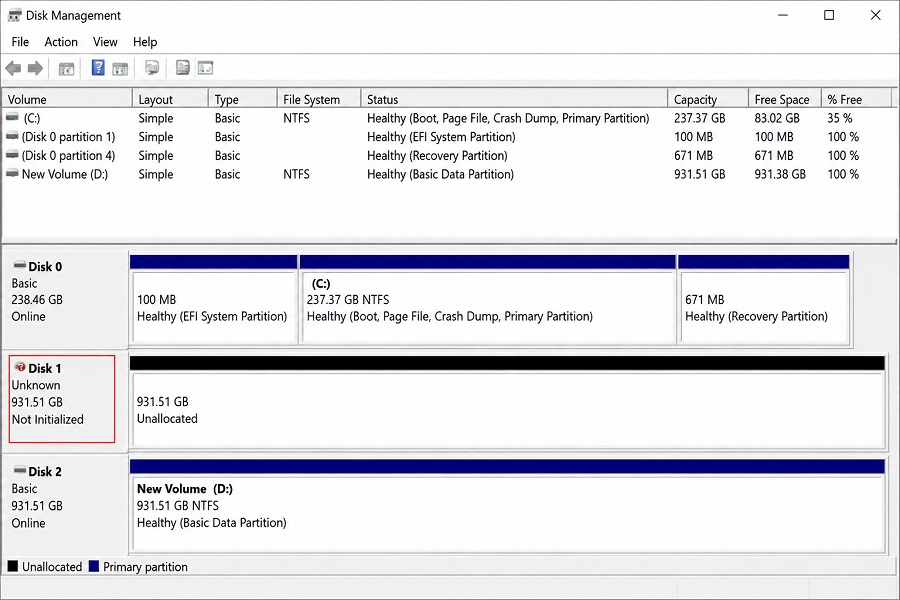
What Does “SSD Not Initialized” Mean in Windows?
An SSD needs more than just NAND flash and a controller to become usable in Windows.
The internal architecture of an SSD, including the NAND flash, controller, firmware, and interface design, directly affects compatibility and performance. Learn more about how PCIe SSD architecture works and why the interface impacts SSD speed.
The operating system needs a disk structure that defines how storage space is organized.
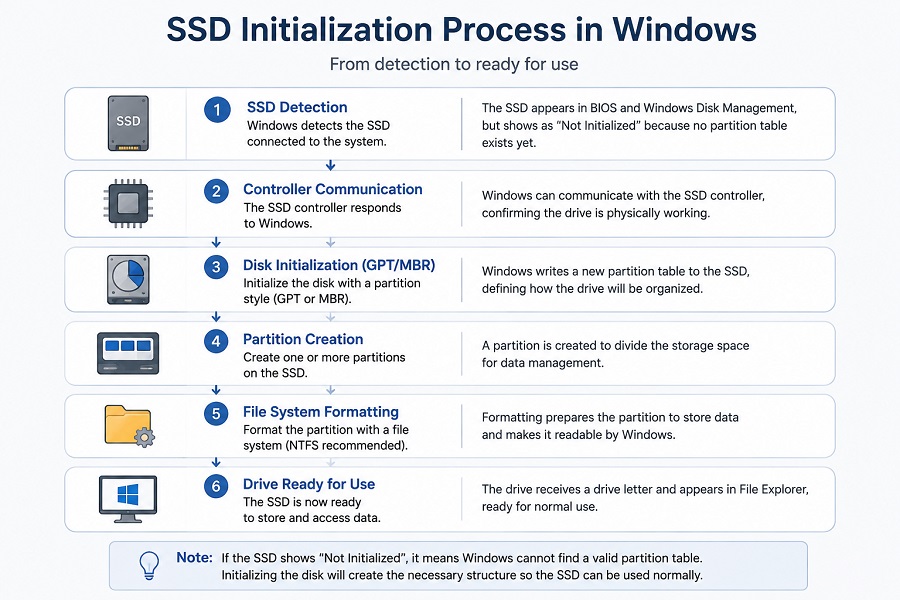
The process is:
SSD Detection
      ↓
Controller Communication
      ↓
Disk Initialization (GPT/MBR)
      ↓
Partition Creation
      ↓
File System Formatting
      ↓
Drive Ready for Use
When Windows displays:
Disk 1
Unknown
Not Initialized
it means:
- The SSD has been detected by the system
- The SSD controller is responding
- Windows cannot find a valid partition table
In simple terms, the SSD exists physically, but Windows does not know how to organize the available storage space.
This is different from a situation where the SSD is not detected at all.
SSD Not Initialized vs Other SSD Detection Problems
SSD-related problems are often confused because the symptoms look similar. However, each problem happens at a different stage.
| Problem | System Status | Possible Causes |
|---|---|---|
| SSD not detected in BIOS | Motherboard cannot see the SSD | Connection, compatibility, hardware failure |
| SSD detected in BIOS but not showing in Windows | Hardware is detected but Windows cannot access it | Driver, partition, or system issue |
| SSD shows “Not Initialized” | Windows detects the SSD but cannot read disk structure | Missing or corrupted partition table |
| SSD works but performance is poor | Drive is usable but slow | Cache, firmware, thermal throttling |
If your SSD does not appear in BIOS, initialization is not the solution. If the SSD is detected by BIOS but cannot be accessed in Windows, the issue may involve a different stage of system recognition.
If Windows Disk Management already recognizes the SSD, the problem is usually related to disk structure rather than basic hardware detection.
Why Does an SSD Show “Not Initialized” in Windows?
3.1 A New SSD Has No Partition Table
This is the most common reason.
A new SSD shipped from a manufacturer contains:
- NAND flash memory
- SSD controller
- Firmware
However, it normally does not include a Windows partition.
SSD manufacturers complete hardware validation before shipment, while partition creation is normally performed by the end user during system installation.
During SSD production:
NAND Flash Testing
        ↓
SSD Assembly
        ↓
Firmware Programming
        ↓
Performance Validation
        ↓
Quality Inspection
After installation in a computer, Windows creates the user storage structure:
Initialize Disk
        ↓
Create Partition
        ↓
Format
        ↓
Store Data
SSD manufacturers complete hardware and reliability validation before shipment, while disk initialization is normally performed by the end user during operating system setup.
3.2 Corrupted Partition Information
If an SSD was previously used, “Not Initialized” may indicate that Windows cannot read the existing partition information.
Possible causes include:
- Unexpected power loss
- System crash during writing
- Interrupted formatting
- Failed disk cloning
- Improper migration process
In this situation, the SSD may still be physically healthy.
The problem is that the information Windows uses to locate partitions has become damaged or unreadable.
Important:
If the SSD contains valuable data, do not immediately initialize or format the drive.
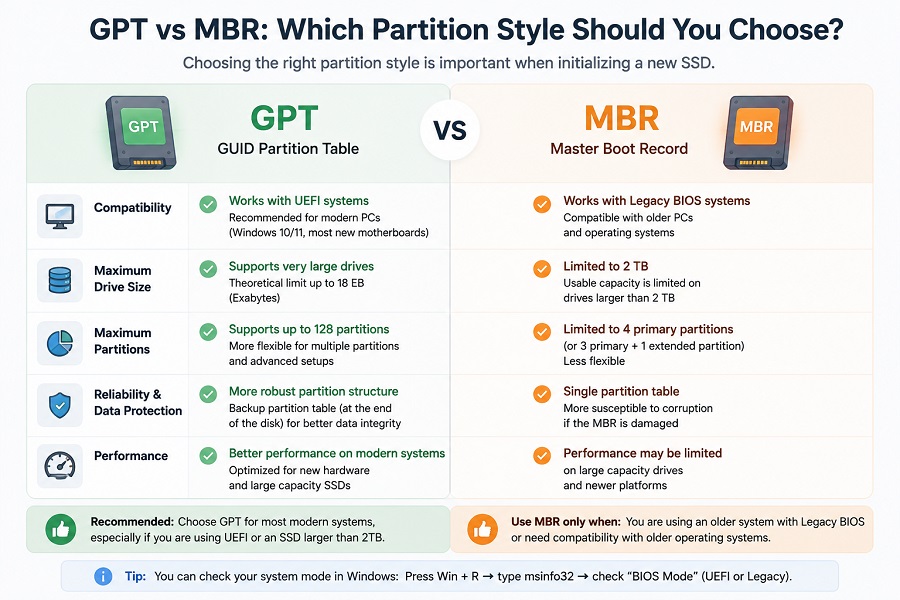
3.3 MBR and GPT Compatibility Issues
When initializing an SSD, Windows requires a partition style:
- MBR (Master Boot Record)
- GPT (GUID Partition Table)
MBR (Master Boot Record)
MBR is an older partition format.
Advantages:
- Compatible with older systems
- Works with Legacy BIOS
Limitations:
- Limited support for large-capacity drives
- Less suitable for modern Windows systems
GPT (GUID Partition Table)
GPT is designed for newer computers.
Advantages:
- Works with UEFI systems
- Supports larger SSD capacities
- Better compatibility with Windows 10 and Windows 11
Unless you are using an older system with Legacy BIOS, GPT should be your default choice for a modern SSD installation.
3.4 SSD Firmware or Hardware Problems
Although less common, repeated initialization failures may indicate a deeper SSD issue.
Possible causes include:
- Controller communication problems
- NAND flash errors
- Firmware instability
- Power or connection problems
Typical error messages include:
- “The request failed due to a fatal device hardware error”
- “I/O device error”
- “Incorrect function”
At this stage, repeatedly initializing the SSD usually will not solve the problem.
How to Initialize an SSD in Windows
Before starting, confirm whether the SSD is new or already contains data.
For a new SSD:
Initialization is normally required.
For a used SSD:
Check whether important files exist before proceeding.
Step 1: Open Disk Management
In Windows:
Right-click Start Menu
        ↓
Disk Management
Locate the SSD marked:
Unknown
Not Initialized
Step 2: Confirm the Correct SSD
Before selecting initialization, verify:
- Disk number
- Storage capacity
- SSD model
Example:
Disk 1
1TB NVMe SSD
Unknown
Not Initialized
This step is important because initializing the wrong drive may affect existing data.
Step 3: Select GPT or MBR
Windows will display:
Initialize Disk

Choose a partition style:
○ MBR
○ GPT
Recommended:
| Usage Scenario | Recommended Format |
|---|---|
| Windows 11 PC | GPT |
| Modern UEFI motherboard | GPT |
| SSD above 2TB | GPT |
| Older Legacy BIOS system | MBR |
Step 4: Create a New Volume
After initialization:
- Right-click the unallocated space
- Select New Simple Volume
- Assign a drive letter
- Format with NTFS
After completing these steps, Windows should recognize the SSD normally.
What If an SSD Cannot Be Initialized?
Sometimes Windows detects the SSD but fails during initialization.
Error: Fatal Device Hardware Error
Possible causes:
- SSD hardware failure
- Poor connection
- Controller communication issue
Recommended checks:
- Reinstall the SSD
- Try another SATA port or M.2 slot
- Test on another computer
- Check SSD health information
SSD Shows 0 Bytes Capacity
If Windows displays:
Capacity: 0 Bytesinitialization usually cannot solve the problem.
Possible reasons:
- Controller failure
- Firmware issue
- NAND communication problem
Professional SSD diagnostic tools may be required.
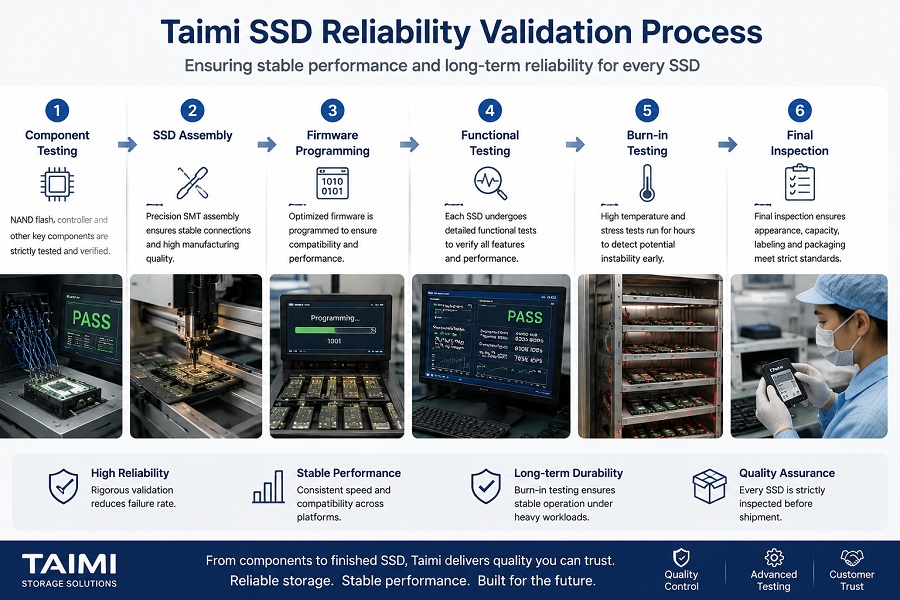
How SSD Manufacturers Reduce These Problems
At Taimi, SSD reliability validation includes host platform compatibility testing, firmware verification, and performance checks before products are shipped to customers.
During SSD validation, engineers focus on:
- NAND flash quality
- Controller communication
- Firmware stability
- Host platform compatibility
- Long-term reliability testing
A typical SSD validation process includes:
Component Testing
        ↓
SSD Assembly
        ↓
Firmware Programming
        ↓
Functional Testing
        ↓
Burn-in Testing
        ↓
Final Inspection
These tests help identify unstable drives before shipment and improve compatibility across different systems.
FAQ
Does initializing an SSD erase data?
Initializing mainly creates or replaces partition information. If the SSD contains important files, avoid initialization until data recovery options have been considered.
Why does my new SSD show “Not Initialized”?
A new SSD usually has no Windows partition structure. Initialization creates the disk structure required before formatting and use.
Should I choose GPT or MBR for my SSD?
For most modern computers, GPT is recommended because it works better with UEFI systems and large-capacity SSDs.
Can a failed SSD be initialized?
If an SSD repeatedly fails initialization or reports hardware errors, the issue may be related to the controller, firmware, or NAND flash rather than the partition structure.
Why does Disk Management show my SSD but I cannot initialize it?
If Windows detects the SSD but cannot initialize it, the issue may be related to corrupted partition information, firmware problems, hardware errors, or connection issues.
Key Takeaways:
• New SSDs often require initialization before use.
• GPT is recommended for most modern systems.
• Do not initialize a used SSD before checking important data.
• Repeated initialization failure may indicate hardware problems.
Conclusion
An SSD showing “Not Initialized” in Windows does not always mean the drive has failed.
For new SSDs, this is usually a normal preparation step before creating partitions. For previously used SSDs, the problem may be related to damaged partition information or hardware issues.
The key is identifying where the problem occurs:
- BIOS detection
- Windows recognition
- Disk initialization
- Storage access
From an SSD manufacturing perspective, these scenarios demonstrate why firmware validation, compatibility testing, and quality control are critical throughout the product lifecycle.
Related Products
Recommended Articles
DRAM vs DRAM-less SSD Explained: Performance, Endurance, and Buying Guide (2026)
2026-08-03
More
SSD Burn-in Testing Explained: How SSD Manufacturers Ensure Reliability Before Shipping
2026-07-31
More
Why Is My SSD Slow After Installation? Causes and Fixes Explained
2026-07-29
More
SSD Manufacturing Quality Control: Inside Taimi SMT Production Process
2026-07-24
More
SSD Not Detected in BIOS? What SSD Compatibility Testing Reveals
2026-07-17
More
SSD TBW Explained: What It Means and How It Affects SSD Lifespan
2026-07-15
More
Cloned SSD Won’t Boot After Migration? 7 Fixes to Start Windows Again
2026-07-13
More
New SSD Not Showing Up? Here's How to Fix It in 3 Simple Steps (2026 Guide)
2026-07-03
More